
How to Turn the Narrator Off (and On) in Minecraft Bedrock
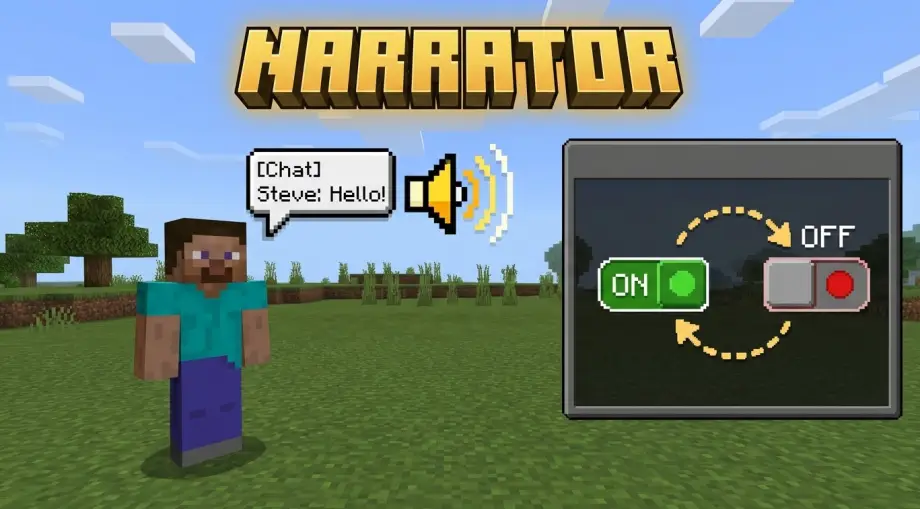
A voice suddenly starts reading out every menu button and chat message, and you have no idea how you turned it on. You probably bumped a keyboard shortcut. Here's the off switch.
The Quick Fix
On Windows: press Ctrl + B. That toggles the narrator and is the fastest way to silence it when it starts talking out of nowhere.
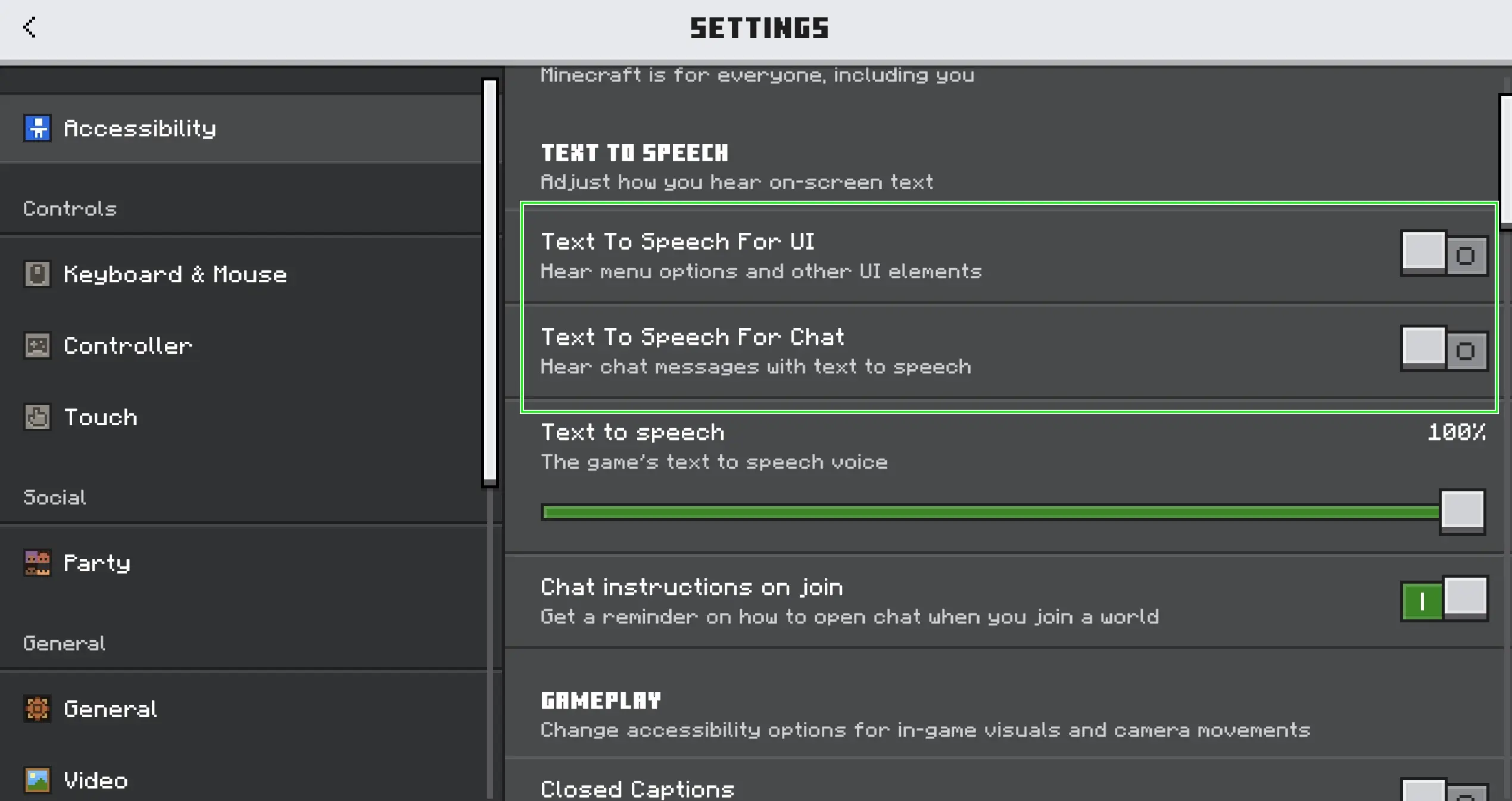
On any platform (the reliable way): go to Settings → Accessibility and turn off both:
- Text-to-Speech for UI (reads menus and buttons)
- Text-to-Speech for Chat (reads chat messages aloud)
That same Accessibility menu is in the identical spot on Windows, Xbox, PlayStation, Switch, and mobile.
If It Won't Stay Off
There's a third toggle in that same menu that catches people out: Text-to-Speech with Device Settings. When it's on, Minecraft copies your device's own accessibility state, so if your phone, console, or Windows has a screen reader enabled, the game quietly switches narration back on to match. Turn this toggle off too if the narrator keeps coming back.
If a voice is reading your desktop or whole console, not just Minecraft, that's your system narrator, not the game's. On Windows that's toggled with Windows + Ctrl + Enter, and consoles have their own screen-reader setting in system accessibility.
Turning It On
Same path, opposite direction: Settings → Accessibility, then switch on whichever you want, Text-to-Speech for UI, Text-to-Speech for Chat, or both. On Windows, Ctrl + B flips it on just as quickly.
Two Separate Toggles (This Part Is Useful)
Unlike Java, which bundles narration into one setting, Bedrock splits it into UI and Chat as two independent switches. That's worth knowing, because you can have one without the other. Don't want your menus narrated but do want chat read aloud? Turn UI off and leave Chat on. That flexibility is exactly what makes the chat option genuinely useful rather than just an accessibility feature.
Why People Turn Chat Narration On Deliberately
Plenty of players, streamers especially, leave Text-to-Speech for Chat switched on by choice. Here's why it's not just an accessibility tool:
- Hands-free chat for streamers. When you're mid-build, mid-parkour, or in a fight, you can't keep glancing at the chat box. With chat narration on, every message other players type gets read aloud, so a streamer hears what's happening in their world without ever looking away from the action.
- Multiplayer where your eyes are busy. In PvP, redstone work, or a hectic survival session, teammates' messages reach you as speech instead of a line you have to stop and read. You catch the "behind you" or "trade with me" the moment it's sent. It pairs naturally with any multiplayer or crossplay session.
- Minigame and server callouts. On busy servers, game events and announcements come through chat. Hearing them read out means you don't miss a round starting or a key instruction while you're focused elsewhere.
- Multitasking. Second monitor, cooking, whatever. Narrated chat lets you keep half an ear on a world you're not actively staring at.
Because Bedrock lets you isolate chat narration from menu narration, you get the useful half (spoken messages) without the annoying half (every button read aloud). That's the setup most people who use it on purpose land on.
Wrapping Up
To silence it: Ctrl + B on Windows, or turn off both text-to-speech options under Settings → Accessibility everywhere else, plus the device-settings toggle if it keeps returning. And if you're a streamer or play a lot of multiplayer, consider leaving just the chat half on. It's a surprisingly handy way to stay in the loop without taking your eyes off the game.