
Minecraft Bedrock Crossplay: How to Play With Friends on Any Device
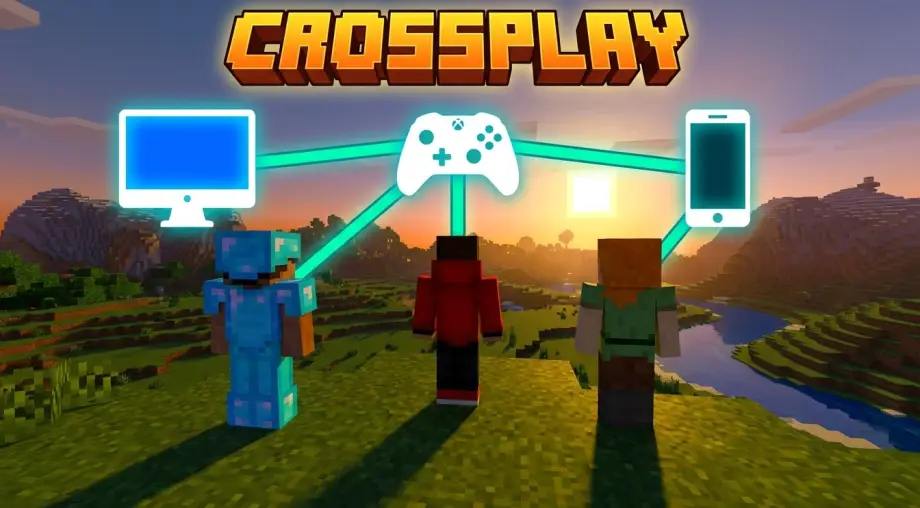
One of you is on Xbox, one's on a phone, and you're on PC. You've all got Minecraft open, you're all staring at the Friends tab, and somehow you still can't join each other. It's maddening, because crossplay is supposed to be the whole point of Bedrock.
The good news: it really does work across every device. When it doesn't, the cause is almost always one of two things, the wrong edition, or a missing account or settings step. Let's fix both.
The Quick Answer
To play together across platforms, everyone needs:
- Bedrock Edition (not Java) on the same game version
- A free Microsoft account, signed in on each device
- On consoles, an online subscription (PS Plus, Nintendo Switch Online, or Xbox Game Pass Core)
- Each other added as friends by gamertag
Tick those four boxes and a PC player, a Switch player, and someone on their phone can all share the same world.
The Edition Trap (This Is Usually the Problem)
Minecraft comes in two versions that cannot play together: Java Edition and Bedrock Edition. This is the single most common reason crossplay "doesn't work."
- Bedrock Edition runs on Windows 10/11, Xbox, PlayStation, Nintendo Switch, iOS, and Android. This is the crossplay edition. Every one of these devices can play together.
- Java Edition runs only on PC (Windows, Mac, Linux) and only plays with other Java players. It has no built-in crossplay with consoles, mobile, or Bedrock at all.
So if your friends are spread across different devices, everyone has to be on Bedrock. There's no setting that bridges Java and Bedrock in normal play.
The sneaky version of this trap is on PC. If a friend bought the "Minecraft: Java & Bedrock Edition" bundle, their launcher shows both. If they click into Java out of habit, they'll be invisible to everyone on console and mobile. Make sure the PC player launches the Bedrock version specifically.
What Each Platform Needs
Every platform needs a free Microsoft account, that part's the same for everyone. The difference is the online subscription, which only applies to consoles:
- PC (Windows) and mobile (iOS/Android): just the free Microsoft account. No subscription for online play.
- Xbox: Xbox Game Pass Core (or Ultimate) for online multiplayer.
- PlayStation: PlayStation Plus for online multiplayer.
- Nintendo Switch: Nintendo Switch Online for online multiplayer.
People constantly mix up these two things, so to be clear: the Microsoft account is free and required on every platform, including PlayStation and Switch. The console subscription is a separate paid thing that only consoles need, and it's your platform's service, not an Xbox subscription on your PlayStation. A PS5 player needs PS Plus, not Xbox anything.
The Ways to Play Together
There are a few different routes, and the right one depends on whether you're in the same room or across the country.
Same Wi-Fi (local / LAN). If everyone's on the same network, Bedrock devices see each other's worlds automatically. The host just needs multiplayer enabled and "Visible to LAN Players" on, and the world shows up on everyone else's Friends tab under LAN. This route needs no console subscription, which makes it the cheapest way to play couch co-op across a phone and a console. Split-screen on a single console is free too.
Invite over the internet (Friends list). Add each other by gamertag, and when the host has a world open, friends can join it from the Friends tab. This is the standard way to play with people who aren't in your house. Consoles need their online subscription for this.
Realms. A Realm is a private world hosted by Mojang that runs 24/7, so friends can hop in anytime, even when you're offline. It's a paid monthly subscription (a few dollars a month, varies by region), with the smaller tier fitting a handful of players at once and the larger one up to ten. Worth knowing: on a Realm, only the owner and assigned operators can run commands, so plan who gets those roles. Also note that on consoles, joining a Realm still requires that platform's online subscription. If you're setting up a fresh Realm and want a good shared survival start, it's worth browsing some Bedrock multiplayer seeds first. (Curious what seed a Realm is using? See our guide on finding a Realm's seed.)
Featured servers. Big community and official servers are free to join straight from the Servers tab, no invite needed. Good for minigames and large communities rather than a private world with your own friends.
Step by Step: Starting an Online Session
- Get everyone on Bedrock, updated to the same version. Check Settings for updates if someone can't connect.
- Sign in to a Microsoft account on every device (create one free at the prompt if needed).
- Add friends by gamertag. Open the Friends tab, search your friend's Microsoft/Xbox gamertag, and send a request. Once accepted, you'll see each other.
- Enable multiplayer. The host opens their world's settings and makes sure Multiplayer Game is on, along with the visibility option for friends.
- Join. With the host's world open, friends tap it under Joinable Cross-Platform Friends in the Friends tab.
The Privacy Setting That Blocks Everyone
If you've done everything right and friends still can't join, the culprit is usually Xbox privacy settings, which apply to your Microsoft account across all platforms. This bites child and family accounts especially hard.
Go to account.xbox.com, open Privacy & online safety settings, and make sure "You can join multiplayer games" and "You can join cross-network play" are both set to Allow. For a child account, a parent has to change these from the family settings. Nothing in the game itself overrides these, so this is often the missing piece.
Troubleshooting
"I can't see my friend's world." Run down the list: are you both on Bedrock (not one on Java)? Same game version? Actually friends on your accounts? Host's multiplayer setting on? And the Xbox privacy settings above set to Allow? One of those five is nearly always the answer.
"My PlayStation friend can't join." Check that their PlayStation Plus is active. A lapsed console subscription silently blocks online multiplayer even when everything else is set up correctly.
"We're on the same Wi-Fi but nothing shows up." Make sure the host has "Visible to LAN Players" enabled, and that both devices are actually on the same network (not one on Wi-Fi and one on mobile data). Some routers with strict NAT settings also block local discovery.
"I can't add my friend." Gamertags are exact. Double-check spelling and any numbers, and confirm you're searching their Microsoft/Xbox gamertag rather than their PlayStation or Nintendo username, which can be different.