

How to Transfer a Minecraft World From Your Phone to PC or Console (Bedrock)
You've spent months building a world on your phone, and now you want it on a bigger screen. The good news: it's possible. The catch most guides skip: there's no single button that sends a world from one device to another. How you move it depends on where it's going. A PC can import a world file directly. A console can't, and needs a Realm in the middle.
The Quick Answer
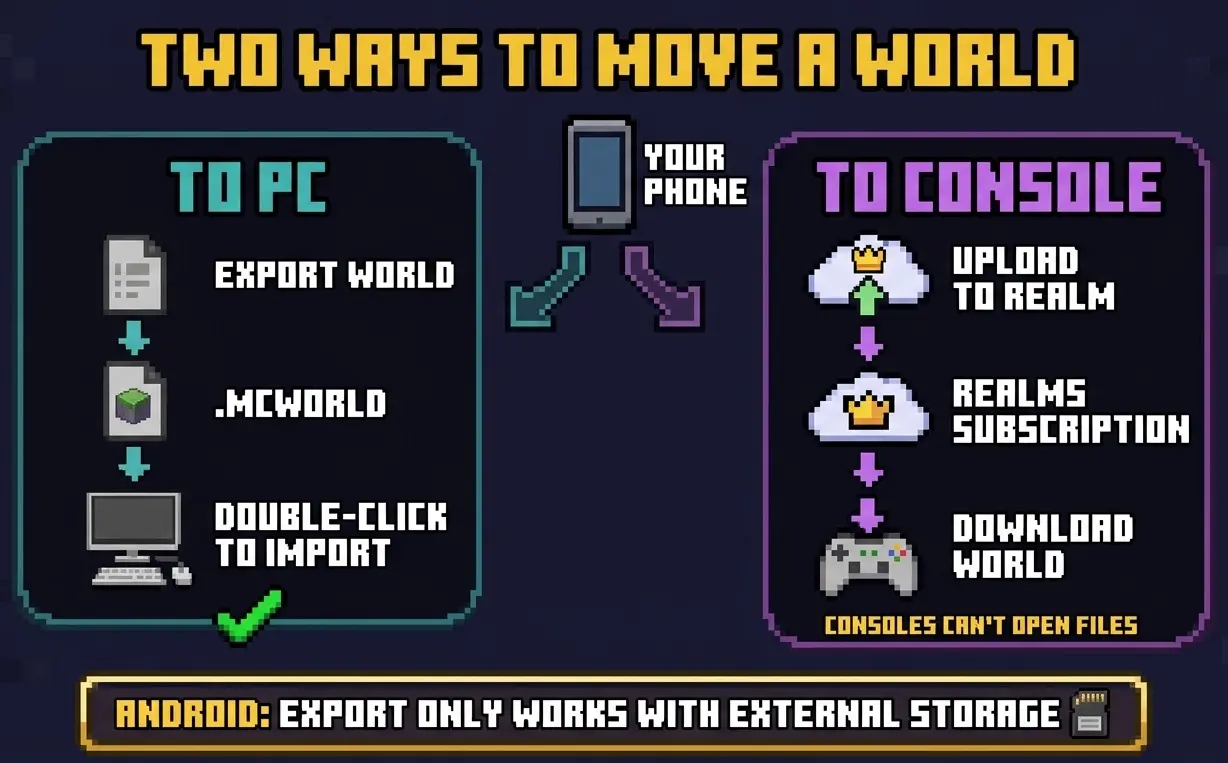
- Phone to PC: export the world as a
.mcworldfile on your phone, move the file to your PC, and double-click it. - Phone to console: upload the world to a Realm from your phone, then download it from the Realm on your console. This needs a Realms subscription, because consoles can't import world files.
- Android catch: on Android, Export World only works for worlds saved to External storage. If you don't see the option, Realms is your fallback.
Before you start, make a backup if you can. Exporting a copy of the world first is the cheapest insurance there is.
Method 1: Phone to PC With Export World
- Open the world's settings. On your phone, tap Play, then tap the pencil icon next to the world you want to move.
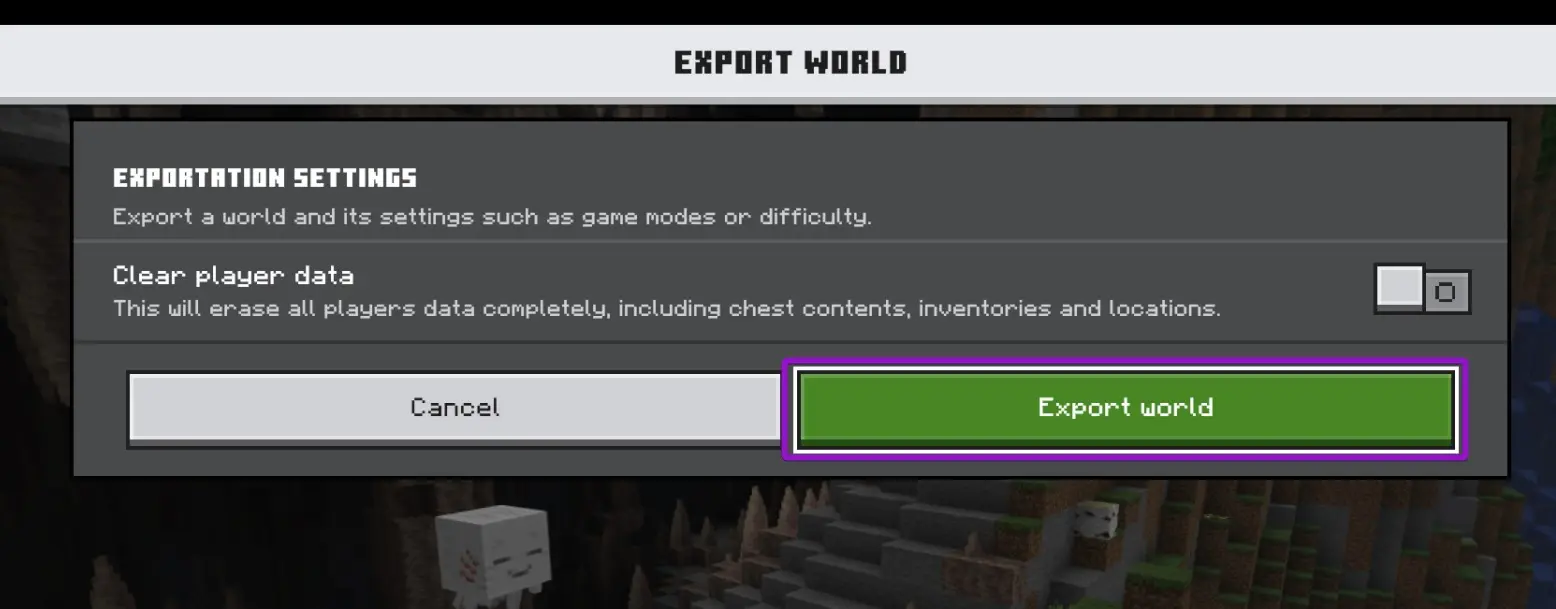
- Export it. Scroll to the bottom of the settings and tap Export World. Minecraft packs the whole world into a single
.mcworldfile. - Save the file somewhere you can reach from your PC. On iPhone and iPad, the share sheet lets you save to Files, iCloud Drive, or send it by AirDrop. On Android, save it to your files or share it to a cloud drive. Big worlds can be hundreds of megabytes, so a cloud drive or USB cable beats email.
- Import on the PC. Download the file to your Windows PC and double-click it. Minecraft opens and imports the world, and it shows up in your Worlds list.
That's the whole process for PC. The same steps work in reverse: on Windows, Export World sits in the same place in the world's settings, so you can send a PC world to your phone just as easily.
The Android Storage Catch
This is the step that confuses most Android players. Minecraft on Android can save worlds in two places, set under Settings > Storage > File Storage Location:
- Application storage is private to the Minecraft app. Worlds saved here can't be exported, and the Export World option may simply not appear.
- External storage is where Export World works.
Newer Android versions also lock down the Android/data folder where Minecraft keeps its files, so the old trick of copying the world folder by hand with a file manager no longer works on most phones. If your world is in Application storage and Export World isn't available, don't fight it: use the Realms method below, which works regardless of where the world is stored.
Method 2: Phone to Console With Realms
Xbox, PlayStation, and Switch have no way to open a .mcworld file, so the only route onto a console is through a Realm. Realms is a paid subscription, but you only need it active while you move the world. If you don't plan to keep using it, one month is enough.
Upload from your phone:
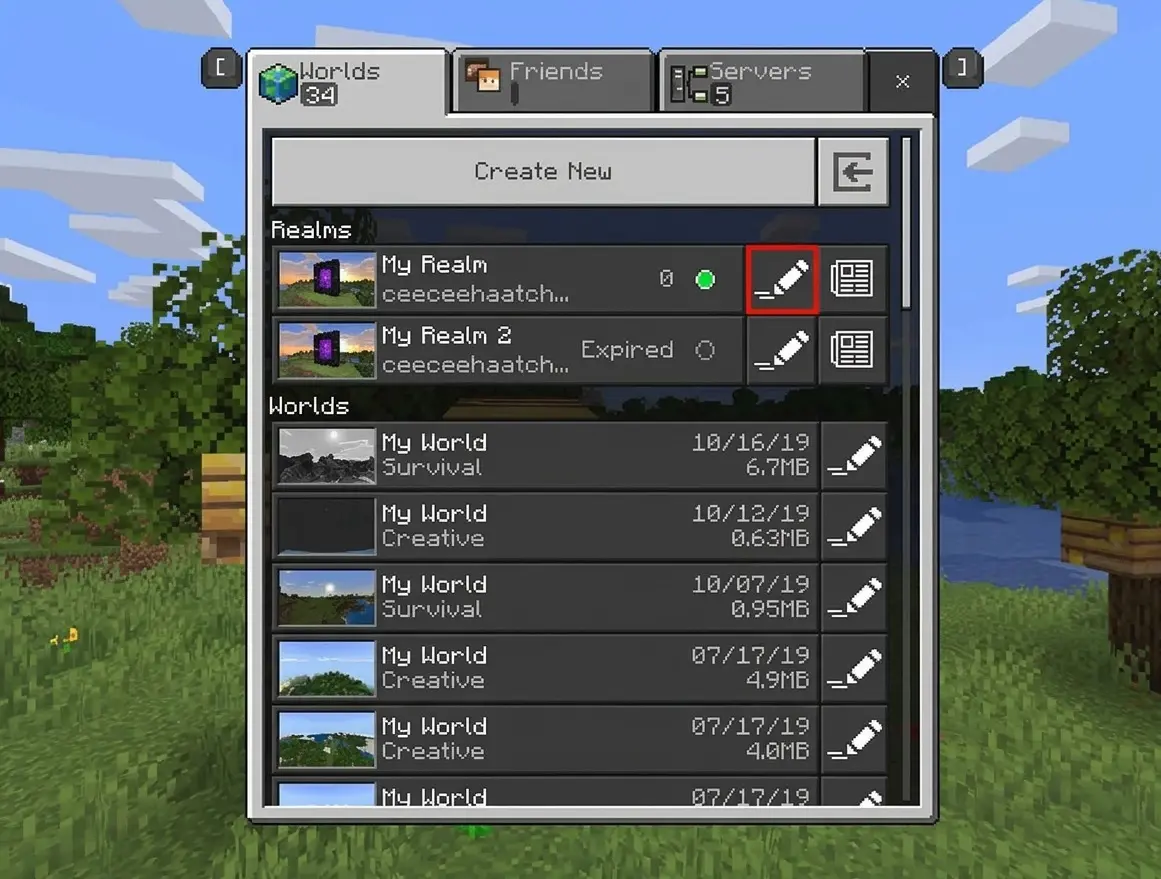
- Tap Play, open the Realms tab, and select your Realm.
- Open the Realm's Worlds tab and pick a slot.
- Choose Edit World and scroll to the bottom.
- On an empty slot, choose Upload World. On a slot that already has a world, choose Replace World. Then pick the world from your phone.
Be careful with Replace World: it permanently overwrites whatever world was in that slot, and anyone playing on it gets kicked. Use an empty slot if you have one.
Download on your console:
- Sign into the Microsoft account that owns the Realm, and make sure Minecraft is up to date.
- Go to Play, open Realms, select the Realm, and open the slot with your world.
- Choose Edit World, scroll down, and choose Download World.
- The world appears in your regular Worlds list (not under Realms), with "- Copy" added to its name.
Now it's a normal local save on your console, and you can play it even after the Realm expires. You can also skip the download and simply keep playing on the Realm itself, which lets you continue the same world from your phone, PC, and console.
The Realm route works for any Bedrock device, by the way. It's also how you'd move a world from PC to console, or from one console to a different brand of console.
What Doesn't Transfer Cleanly
- Marketplace content. Worlds that use skin packs, texture packs, or other Marketplace items need you to own that content on the new device. Sign into the same Microsoft account and it follows you.
- Add-ons. Worlds with third-party add-ons may need the packs installed on the new device. On consoles, add-ons that aren't from the Marketplace usually won't work at all.
- Performance. A huge world built on a high-end phone can feel heavier on an older console or a weaker PC. The world itself is fine, it's just more to load.
Bedrock vs Java
This whole guide is Bedrock-only. Java Edition doesn't run on phones or consoles, so there's nothing to transfer to. Java worlds also can't be imported into Bedrock with Export World or Realms: the editions use different save formats. Third-party converters exist, but expect redstone and command blocks to need fixing afterward. For a full breakdown of the editions, see our Java vs Bedrock guide.
Troubleshooting
"I can't find Export World on my phone." On Android, check Settings > Storage > File Storage Location. Worlds in Application storage can't be exported. If switching doesn't help the world you need, use Realms instead.
"Double-clicking the file on PC doesn't open Minecraft." Make sure you have Bedrock installed on the PC, not just Java. If the file downloaded as .zip, rename the extension back to .mcworld and try again.
"Import failed." The file was probably cut off while transferring. Large worlds get truncated by email limits and shaky connections. Export again and move the file by cloud drive or cable.
"I can't see Download World on my console." Only the Realm owner can download its worlds. Sign into the owner's Microsoft account on the console.
"My downloaded world isn't in the Realms tab." That's expected. Downloaded worlds go to your regular Worlds list with "- Copy" in the name.