

NEWB X AI Shaders for Minecraft
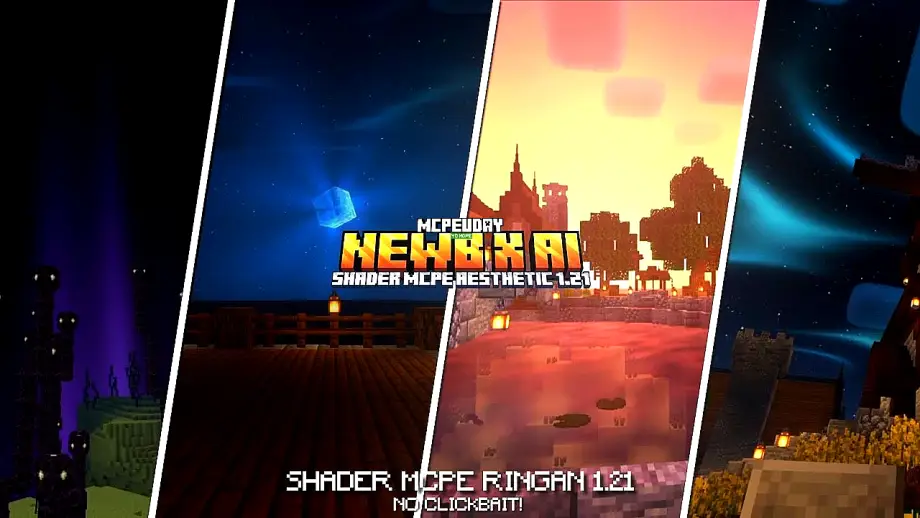 Go to files
NEWB X AI Shaders deliver AI-assisted, lightweight shader effects for smoother lighting and shadows while preserving FPS on low to mid-range systems.
🔥 What Are NEWB X AI Shaders?
NEWB X AI Shaders are a lightweight shader pack that combines traditional shader effects with AI-driven enhancements like:
✔ Smarter lighting
✔ Improved shadows
✔ Balanced reflections
✔ Adaptive rendering (quality based on performance)
Instead of only focusing on photorealism (like heavy shader packs), this one uses smart rendering to optimize visuals for your specific hardware.

Think of it as:
Smart graphics — beautiful but efficient.
🤔 How AI Helps Shaders Work Better
Traditional shaders rely on fixed settings:
❌ Hard shadows
❌ Uniform lighting
❌ Fixed reflections
AI-powered shaders add:
✔ Contextual lighting — adapt based on scene
✔ Dynamic shadow smoothing — only when needed
✔ Smart texture blending — sharper details where it matters
Result:
Better visuals + less performance impact.
📌 Who Should Use NEWB X AI Shaders?
These shaders are perfect if you are:
✔ A beginner with a low-mid PC
✔ Someone who wants better visuals without lag
✔ A player who hates technical shader installs
✔ Competitive players who still want performance
Not ideal if you want ultra-realistic, movie-style shaders — those need powerful GPUs.
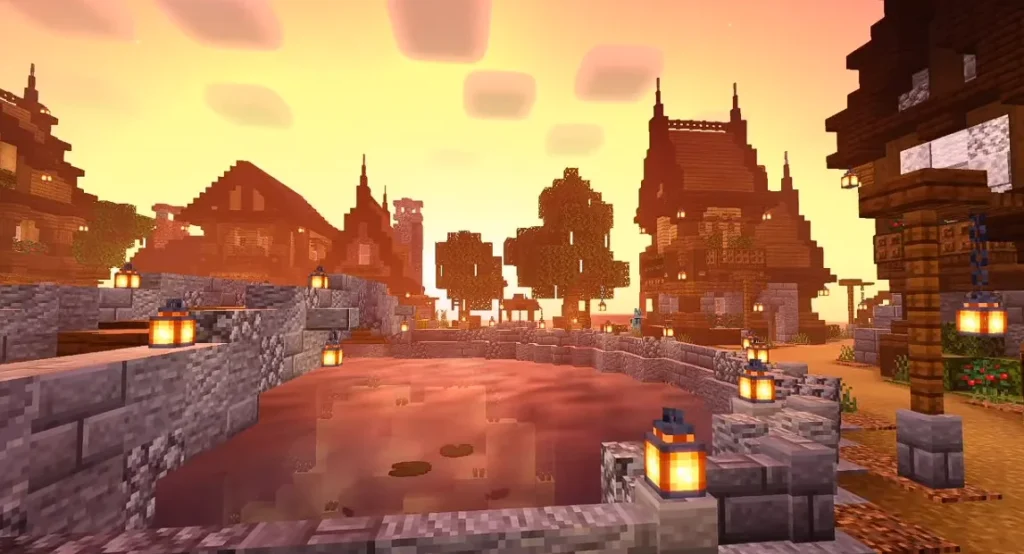
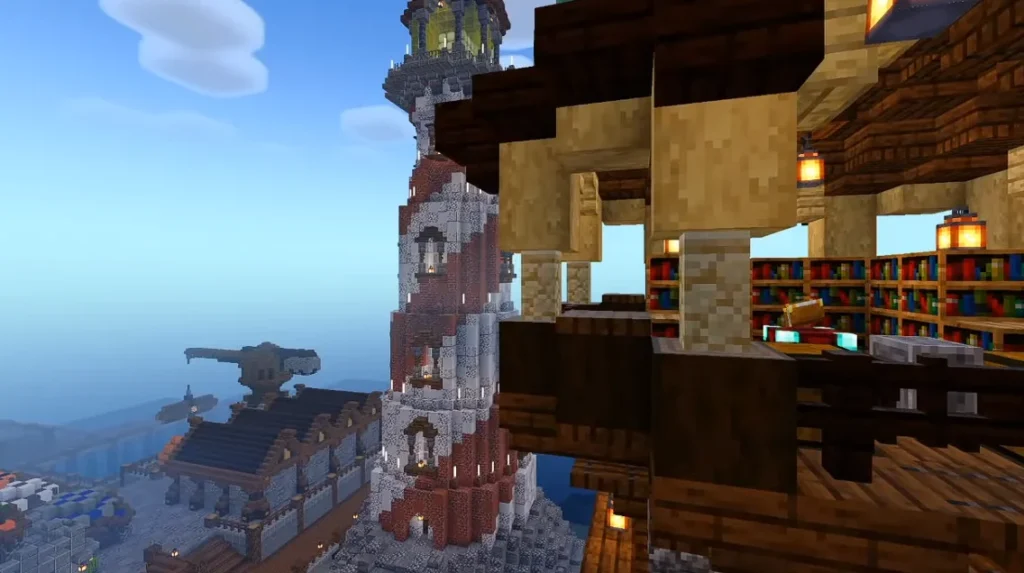
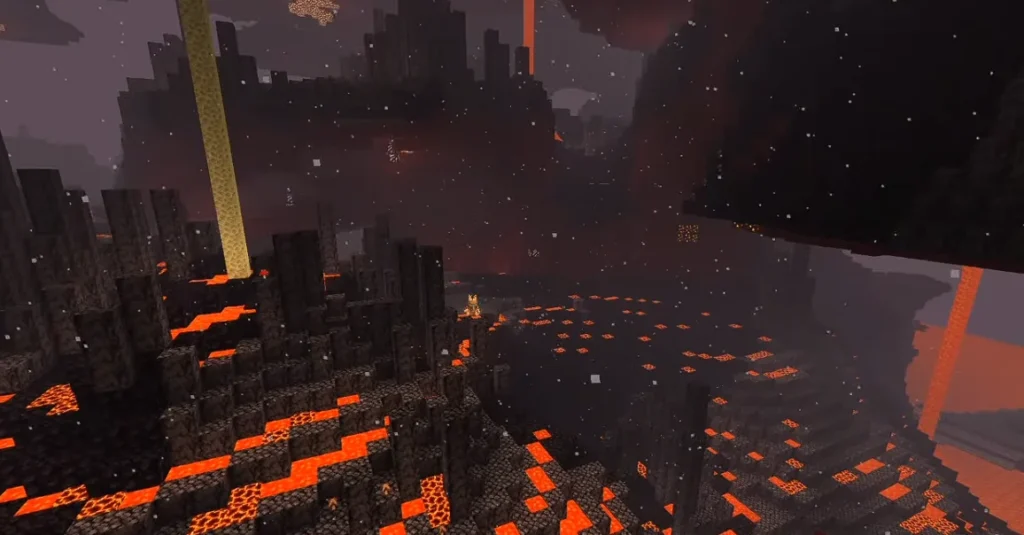
Screenshots:-
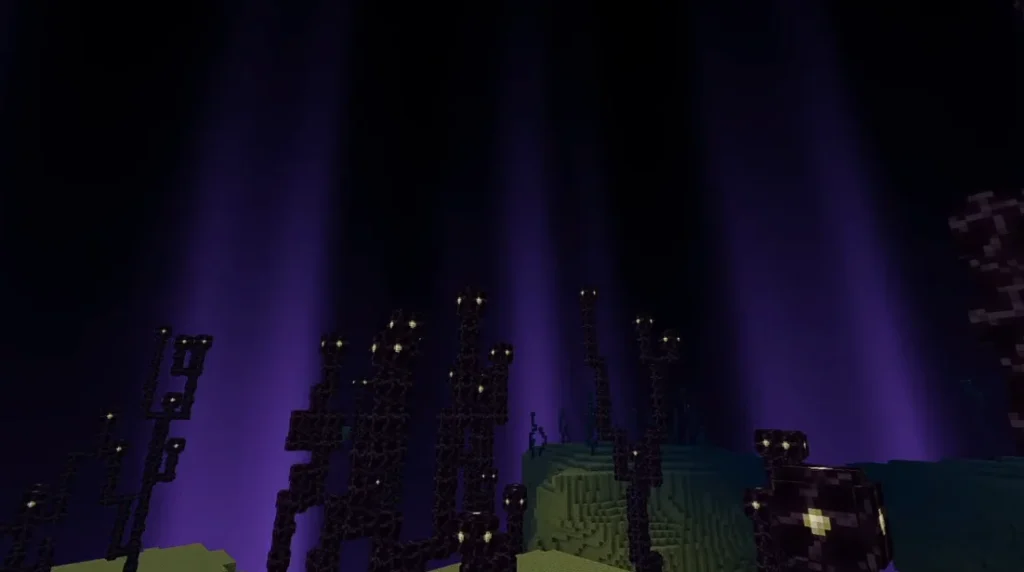
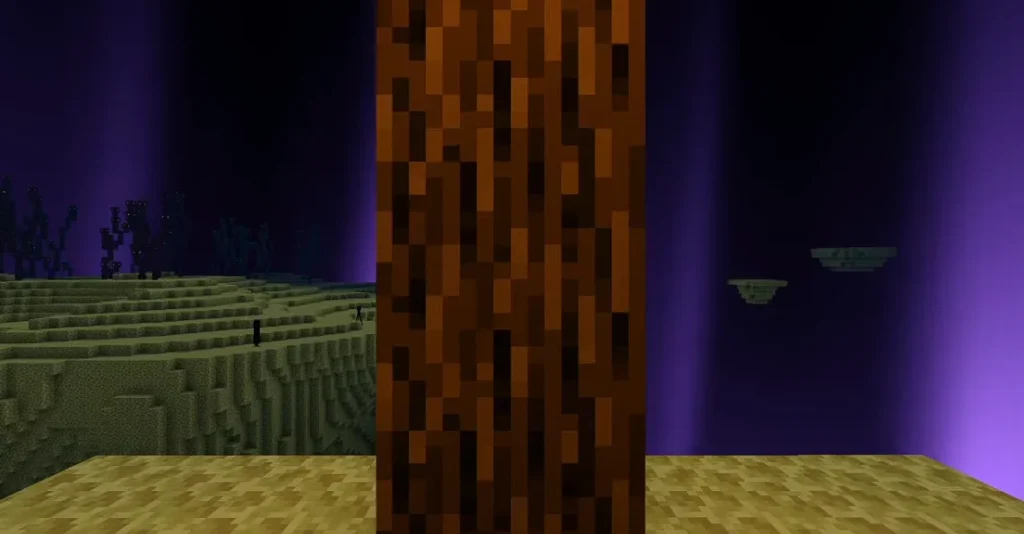
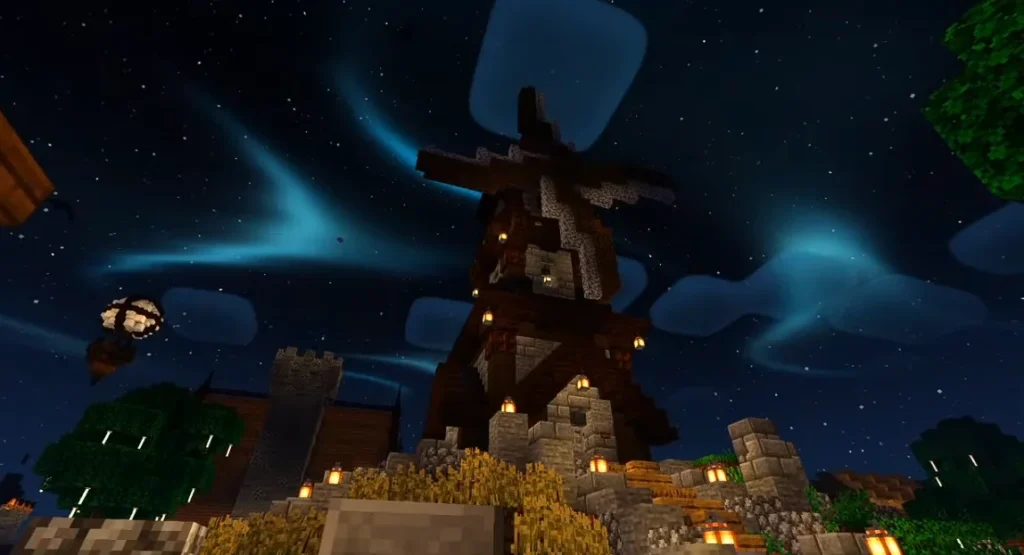
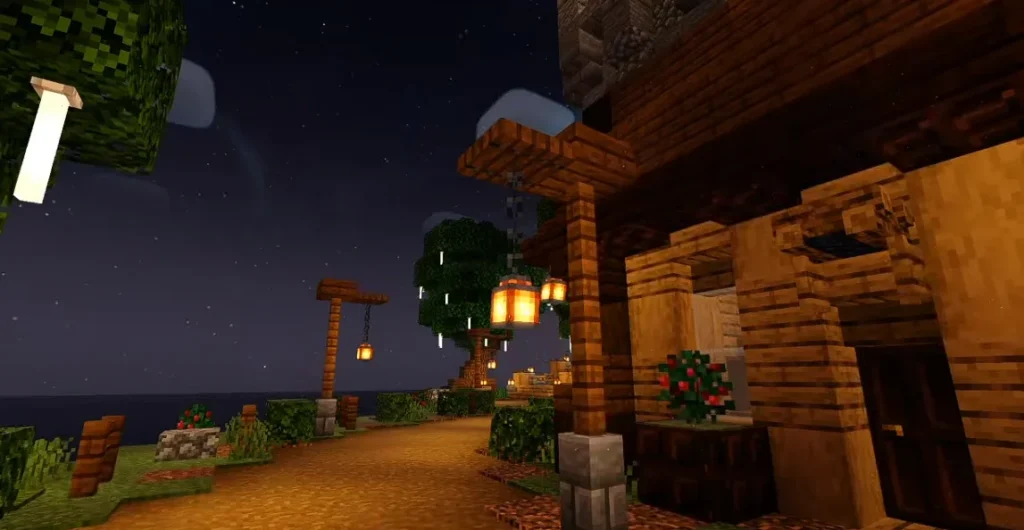
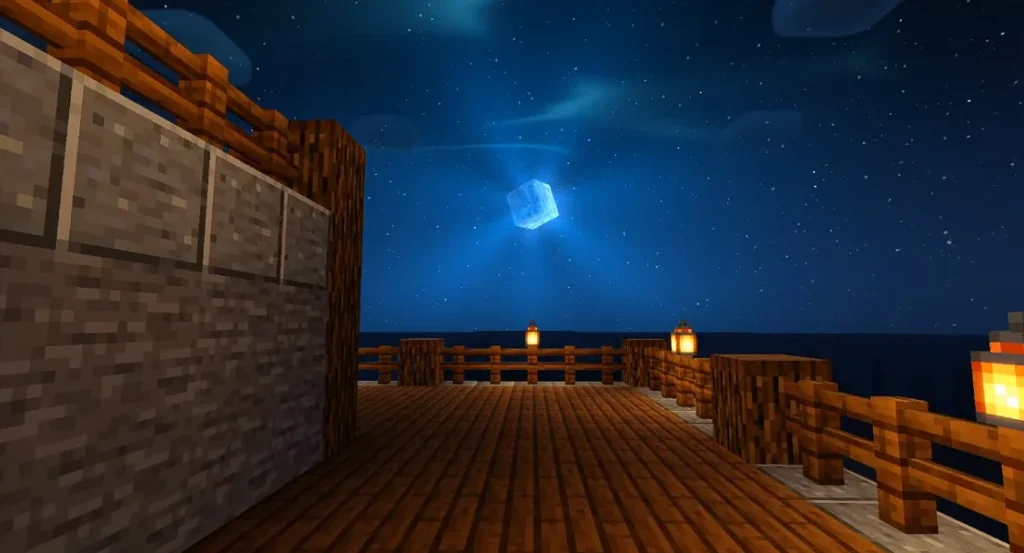
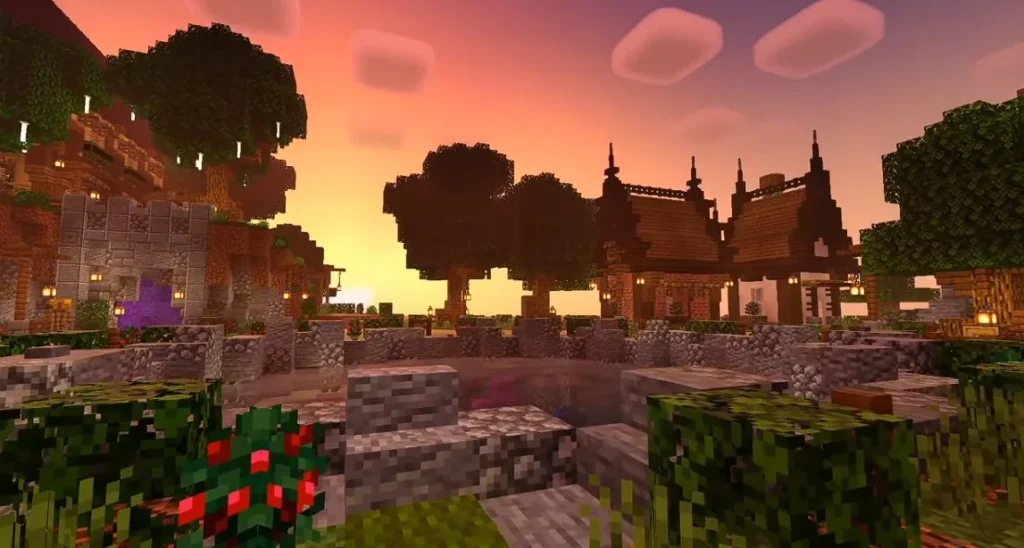
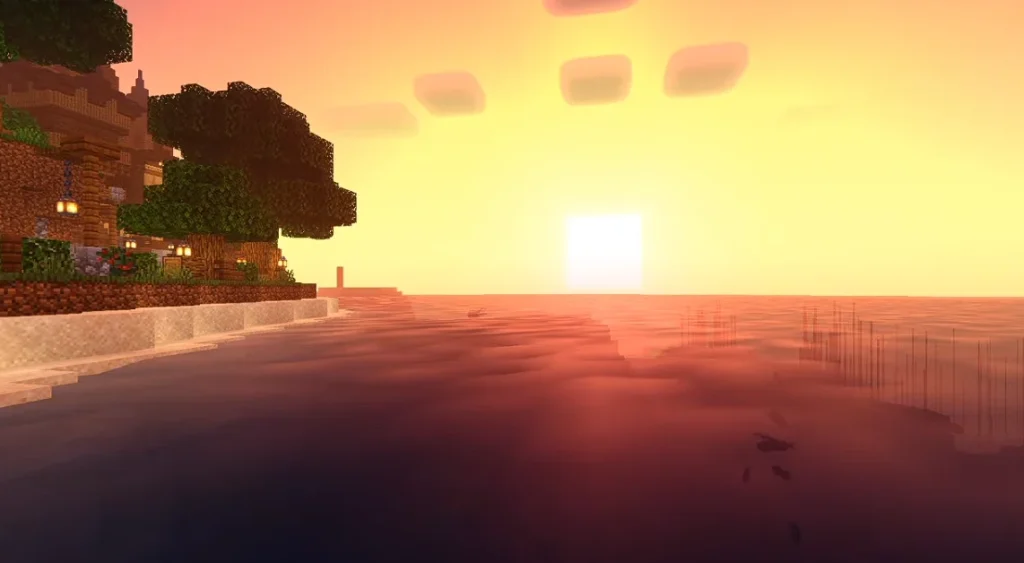
🚀 How to Install NEWB X AI Shaders (Step-by-Step)
Even if you’ve never installed shaders before, follow this:
Step 1 — Install OptiFine or Iris
You must have one of these:
✔ OptiFine
✔ Iris Shaders (Fabric version)
After installation, open Minecraft once so the shader folder is created automatically.
Step 2 — Download NEWB X AI Shader Pack
You’ll get a .zip file.
Don’t unzip it.
Keep it as a zip file exactly.
Step 3 — Open Minecraft > Options > Video Settings > Shaders
Click “Shaders Folder” and drag the shader .zip inside.
Go back and select NEWB X AI Shaders from the list.
⚙️ Best Settings for Low to Mid PCs
To balance performance and visuals, change these:
✅ Shadow Quality → Medium
✅ Render Quality → 0.75–0.85
✅ Volumetric Lighting → Off (better FPS)
✅ Motion Blur → Off
✅ Clouds → Simple or Off
These tweaks can improve FPS significantly (20–40% in many cases).
📊 Performance: What to Expect
Here’s how it generally performs on different systems:
| PC Tier | Typical FPS (Vanilla) | With NEWB X AI Shaders |
|---|---|---|
| Low-End Laptop | 80–100 | 45–70 |
| Mid-Range PC | 120–180 | 90–130 |
| High-End PC | 200+ | 170+ |
Performance varies, but AI shaders are lighter than many classic shader packs.
💡 Tips to Improve FPS Further
If you still experience lag:
✔ Lower render distance
✔ Limit FPS cap
✔ Reduce shadow resolution
✔ Turn off unnecessary visuals
AI shaders are smart, but you still need balance for older hardware.
❓ FAQ — NEWB X AI Shaders
Q: Do I need a powerful GPU?
No — that’s the whole point.
They work even on low-mid systems.
Q: Are these shaders compatible with Minecraft mods?
Yes — most common mods work, as long as OptiFine/Iris is installed.
Q: Are AI effects noticeable?
Yes — lighting feels smoother, shadows look softer, and textures are more balanced.
✔ Should You Use NEWB X AI Shaders?
Yes if you want:
✨ Better visuals
⚡ Smooth performance
🧠 AI-enhanced graphics
📦 Easy installation
No if you want:
💎 Ultra-realistic ray-tracing
🌊 Complete photorealism
For everyday players, these shaders hit the sweet spot.
⚠️ Common Issues & Fixes
❌ Shader Not Appearing
✔ Confirm the .zip is in the shaders folder
✔ Match Minecraft version with the shader version
❌ Low FPS
✔ Reduce render distance
✔ Lower shader settings
✔ Turn off clouds
🎮 Final Verdict
NEWB X AI Shaders are perfect for beginners who want real visual improvement without complex setups or performance loss.
They give:
🌈 Better lighting
☀️ Improved shadows
🔥 Balanced performance
Without turning your game into a slideshow.
