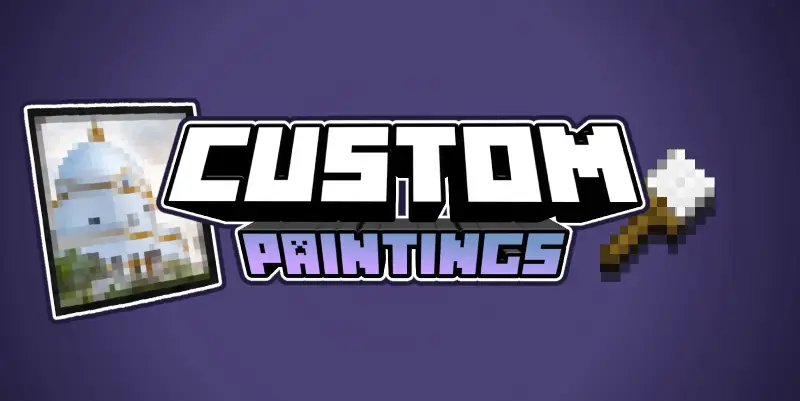
Custom Paintings
 Go to files
This is a fully customizable addon that you can tailor to your liking. Through the TRMC ADDON web editor, you can personalize it by adding any images you want to see in your Minecraft world. Once in-game, simply use the Brush to select one of your images and adjust its size using the available options: 1:1, 1:2, 2:2 …. 16:16.
Custom Painting
A placeable wall item to decorate your base. Imagine hanging a real-life photo of you and your friends in your Minecraft home—this addon makes it possible.
The Brush
Right-click with this tool to cycle through your added images and switch between the available dimensions (1x1, 1x2, 2x2, ….. 16 x 16).
You can select the painting's image using the Brush. By right-clicking while holding it, a UI will appear allowing you to pick an image and change its scale.
Crafting Recipes
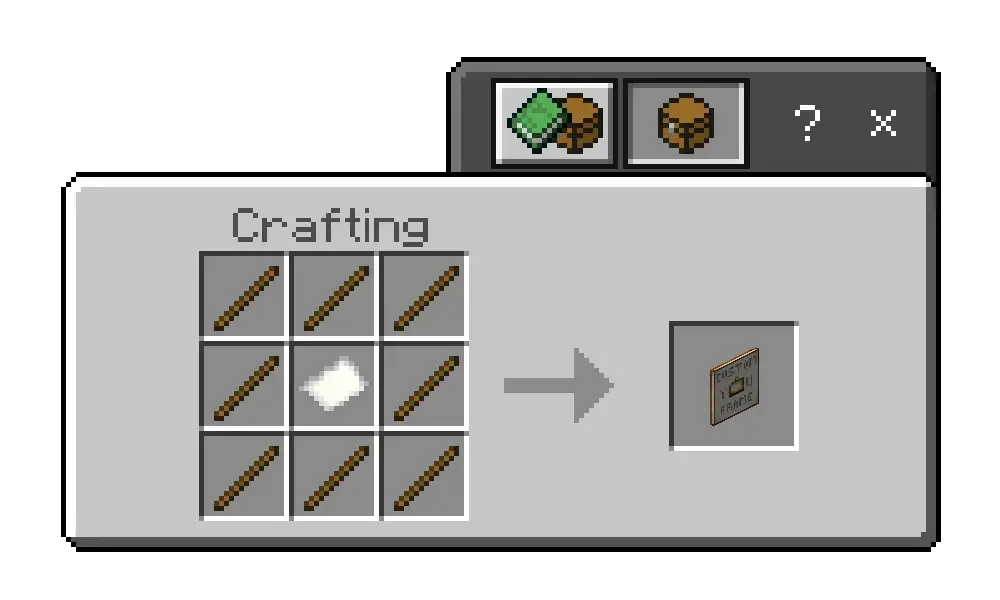
Custom Painting: Very affordable! Place 1 piece of paper in the center of the crafting grid and surround it with sticks.
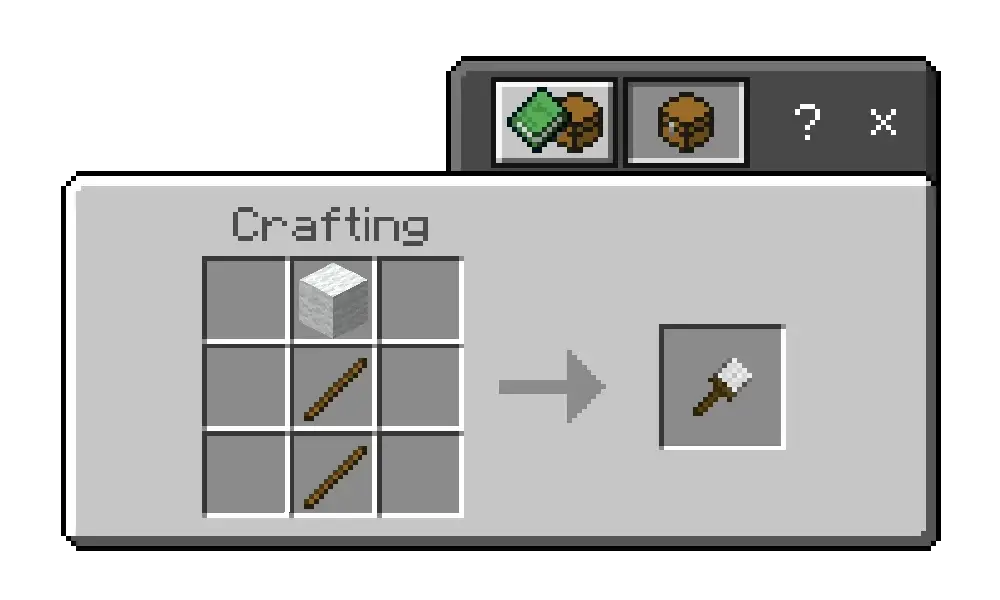
The Brush: Simple to craft—just 2 sticks and 1 block of wool.
Creative Ideas
- Servers: Upload community rules, custom maps, or local memes for your players to display.
- Server Hubs: Place custom signage or branding around your server's spawn area.
- Personal Use: Decorate your builds with personal photos, inside jokes with friends, or high-quality custom art.
How to Download
Since this is a customizable addon, there isn't a "standard" download link. Use the editor below to upload the images you want to use before exporting your personalized pack.
TUTORIAL: Using the Editor
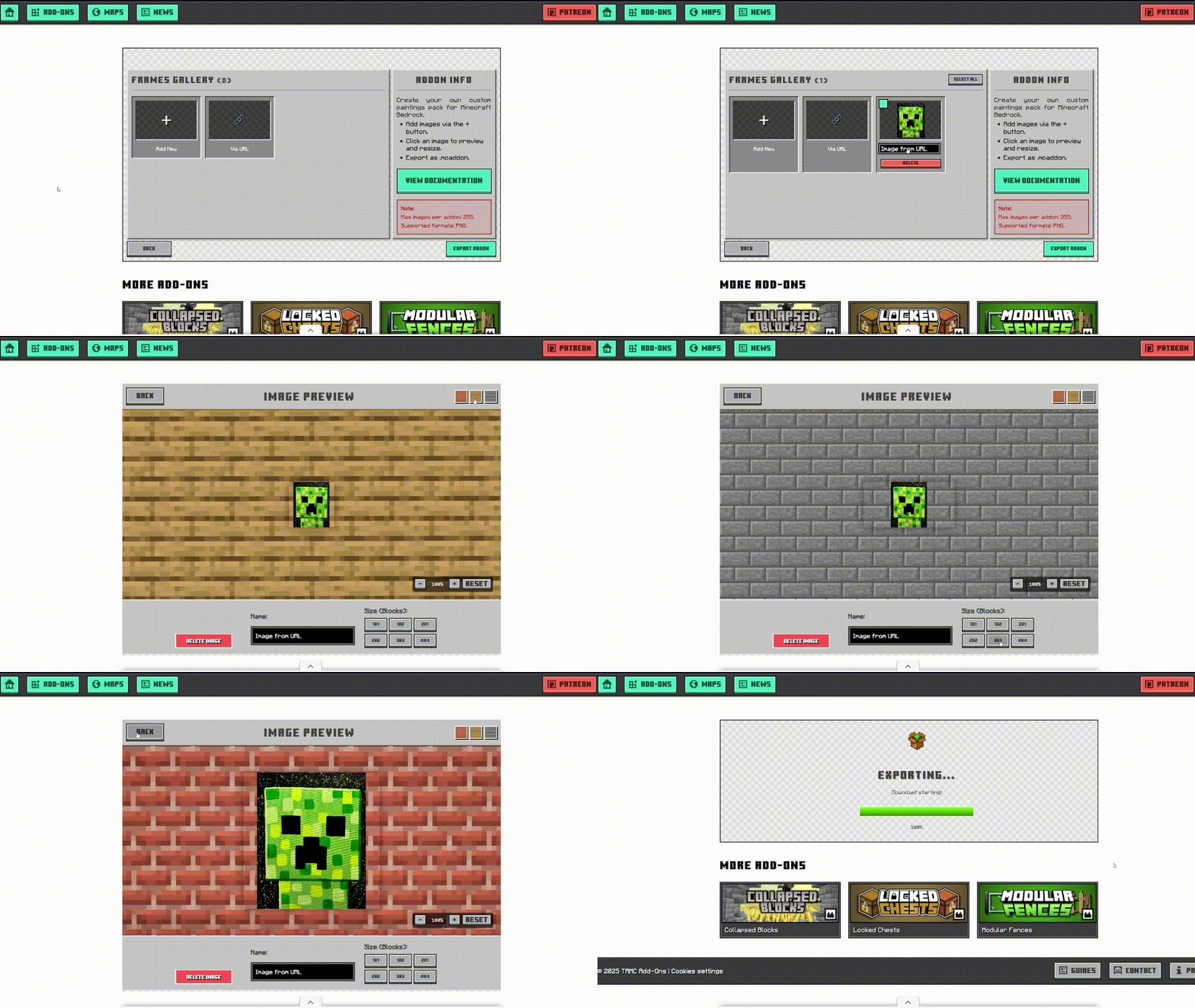
To get your addon, follow these steps in our web editor:
- Start Your Project: You will see two buttons: "Create New Project" (to start from scratch) and "Import" (to upload and modify an existing pack by adding or removing images).
- Adding Images: Use the menu on the left. The (+) button lets you upload files directly from your device, while the Link button allows you to add an image via URL.
- Preview & Edit: Clicking on an image opens a preview window. Here you can see how the painting looks against different Minecraft block backgrounds and test the various sizes.
- Bulk Actions: You can select multiple images to quickly delete them or upload several files at once from your file explorer.
- Exporting: Once you are satisfied with your selection, click the "Export" button. The editor will compile your files and automatically download an .mcaddon file for easy installation.