
How to Update Minecraft Bedrock on PC (2026 Guide)
So your friends are already playing the latest update, and you're stuck on an older version wondering why nothing's working. We've all been there. The good news is that updating Minecraft Bedrock Edition on PC is usually straightforward, but there are a few quirks that trip people up. Let's get you sorted.
Why Your Game Isn't Updating Automatically
Before we get into the how, let's talk about the why. Nine times out of ten, Bedrock is supposed to update on its own. If it didn't, something's off. The most common culprits:
- Your Microsoft Store has automatic updates turned off
- Your PC was asleep or offline when the update rolled out
- There's a pending Windows update blocking things
- You're running low on disk space (Minecraft won't tell you this directly, which is annoying)
Knowing why it failed saves you from doing this dance every time a new update drops.
Method 1: Update Through the Microsoft Store
This is the standard route, and it works for the vast majority of players.
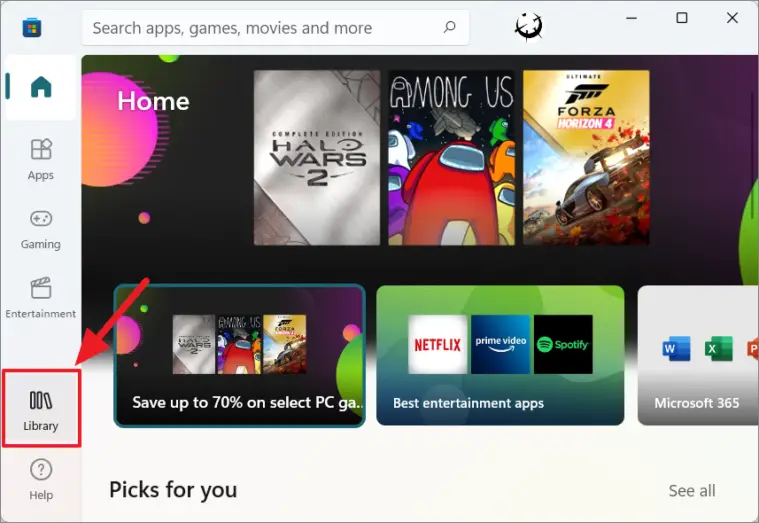
- Open the Microsoft Store. You can search for it in the Start menu or press
Win + Sand type "Microsoft Store." - Click the Library icon in the bottom-left corner (it looks like a stack of books).
- Hit Get updates in the top-right corner. The Store will scan all your installed apps and queue up anything that needs updating.
- If Minecraft pops up in the list, click Update next to it. If it doesn't show up, you're already on the latest version.
That's it for most people. But if you're reading this article, chances are it wasn't that simple for you.
Method 2: Force an Update Manually
Sometimes the Microsoft Store is being stubborn. Here's how to give it a nudge.
Reset the Store cache:
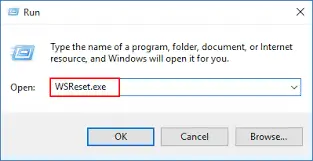
- Press
Win + Rto open the Run dialog - Type
wsreset.exeand hit Enter - A blank command prompt window will open. Don't close it.
- Wait until the Microsoft Store opens on its own (usually 10–30 seconds)
- Go back to Library → Get updates
This clears out any cached data that might be interfering with the update process. It doesn't touch your game data or worlds, so nothing to worry about there.
Method 3: Reinstall Without Losing Your Worlds
If neither of the above methods worked, a clean reinstall usually does the trick. And no, you won't lose your worlds if you do it right.
Back up your worlds first:
- Press
Win + R - Paste this path:
%localappdata%\Packages\Microsoft.MinecraftUWP_8wekyb3d8bbwe\LocalState\games\com.mojang - Copy the entire minecraftWorlds folder somewhere safe (Desktop, USB drive, wherever works)
Now reinstall:
- Open Settings → Apps → Installed apps
- Find Minecraft, click the three dots, and select Uninstall
- Open the Microsoft Store and reinstall Minecraft
- Once installed, copy your minecraftWorlds folder back to the same location
Your worlds, resource packs, and behavior packs should all be right where you left them.
What if You're on the Minecraft Launcher?
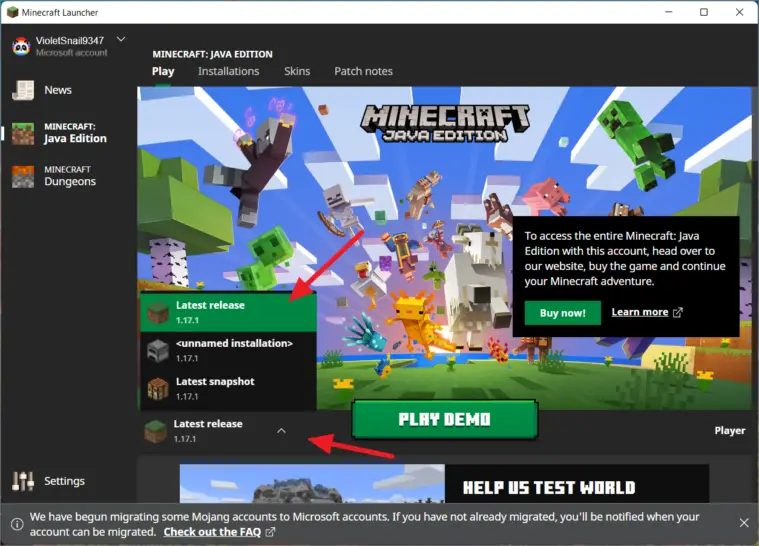
If you downloaded Minecraft through the Minecraft Launcher (the unified launcher from Mojang), updates work a little differently.
- Open the Minecraft Launcher
- Make sure you have Minecraft for Windows selected (not Java Edition)
- If an update is available, you'll see a prompt. Click Play and it'll update before launching.
The launcher generally handles updates more reliably than going through the Microsoft Store directly. If you've been having consistent update problems, switching to the Minecraft Launcher might save you some headaches going forward.
Checking Your Current Version
Not sure which version you're running? Here's how to check:
- Launch Minecraft Bedrock Edition
- Look at the bottom-right corner of the main menu screen
- You'll see a version number like 1.21.62 or similar
To find out what the latest version is, check the official Minecraft website or Mojang's changelog page. If your number matches, you're all good.
Troubleshooting: Still Stuck?
If none of the methods above worked, here are a few more things to try.
Check your Windows version. Minecraft Bedrock requires Windows 10 version 1903 or later (Windows 11 works fine too). If you're on an ancient build of Windows 10, you might need to update your OS first.
Sign out and back into the Microsoft Store. Click your profile icon in the top-right corner of the Store, sign out, restart the Store, and sign back in. This refreshes your license and sometimes kicks the update loose.
Check your internet connection. Obvious, sure, but a flaky Wi-Fi connection can cause downloads to silently fail. Try switching to a wired connection or restarting your router if downloads keep stalling.
Run the Windows Store Apps troubleshooter. Head to Settings → System → Troubleshoot → Other troubleshooters, and run the one labeled "Windows Store Apps." It's hit-or-miss, but occasionally it fixes permissions issues that prevent updates.
A Quick Note About Beta and Preview Versions
If you're enrolled in the Minecraft Preview program, you're running a separate app from the main game. Preview versions update on their own schedule and are not the same as the stable release. If you're trying to join a friend's world and getting version mismatch errors, make sure you're both running the same edition: either both on stable, or both on Preview.
You can have both installed at the same time, but they don't share worlds or settings. Keep that in mind.
In most cases, updating Minecraft Bedrock on PC is a one-click affair through the Microsoft Store. When it isn't, a Store cache reset or a quick reinstall will sort things out. Just remember to back up your worlds before doing anything drastic, and double-check that your Windows version is up to date.
If none of the above worked, consider reaching out to Mojang Support. They've seen every edge case in the book and can dig into account-specific issues that a guide like this can't cover.