
How to Show Coordinates in Minecraft Bedrock (Every Method)
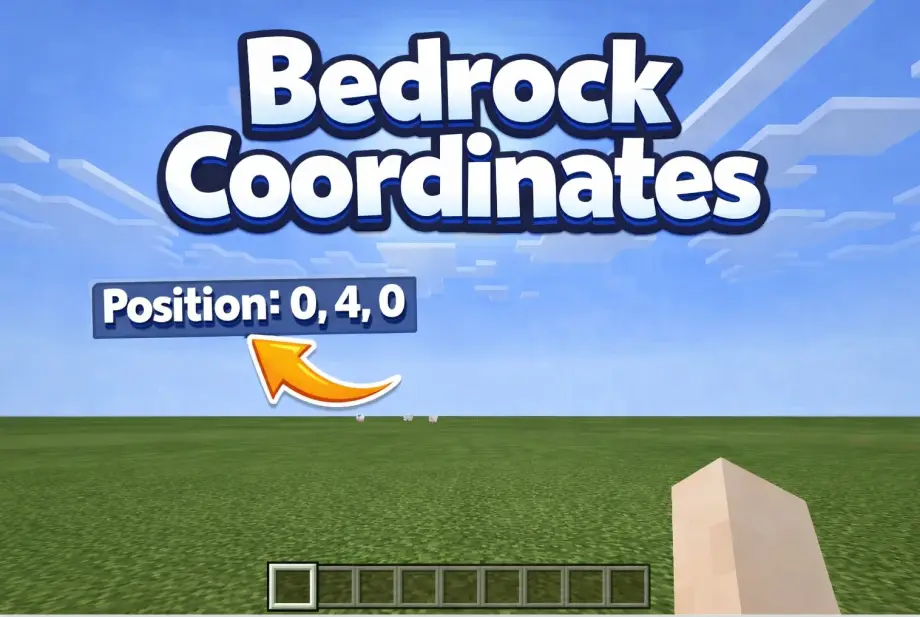
You just found diamonds. Or a village with a blacksmith. Or that perfect mushroom island you'll never find again. But you forgot to check where you are, and now it's gone forever. Classic Minecraft moment.
Bedrock Edition doesn't show coordinates by default, which catches a lot of players off guard, especially if they're coming from Java where you just press F3 and call it a day. The good news: there are several ways to turn them on, and none of them are complicated.
Method 1: Turn On Coordinates in World Settings
This is the simplest and most common way. It works in singleplayer and in worlds you own.
- Open your world (or create a new one)
- Go to Settings → Game
- Scroll down until you find Show Coordinates
- Toggle it on
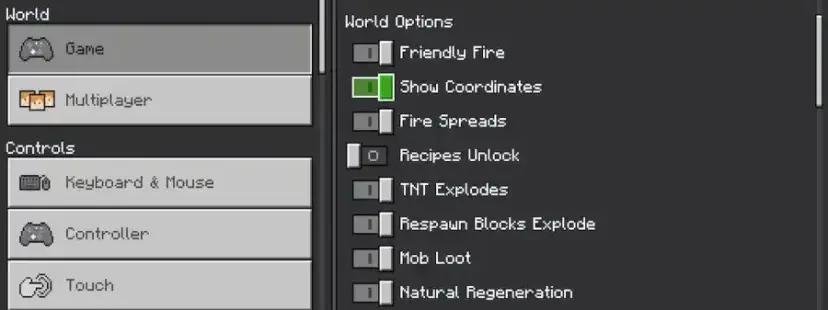
Your coordinates will now appear in the top-left corner of the screen. They update in real time as you move, showing your X, Y, and Z position.
One thing to keep in mind: if you're editing an existing world, you can access this from the pause menu. Hit Escape (or the pause button on console), go to Settings, and the toggle is right there under Game.
Method 2: Enable Coordinates When Creating a New World
If you're starting fresh, you can turn coordinates on before you even load in.
- Click Create New → Create New World
- In the Game tab on the left, scroll to Show Coordinates
- Toggle it on
- Set up the rest of your world settings and hit Create
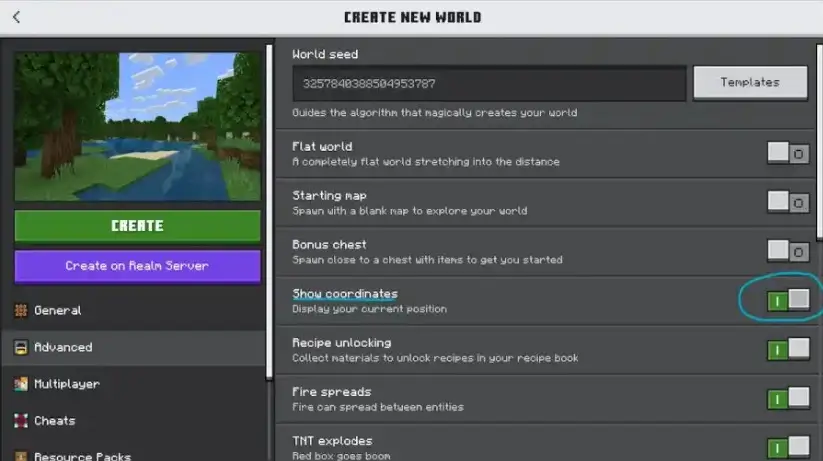
This way you'll have coordinates from the very first moment you spawn in. No fumbling through menus while a creeper sneaks up behind you.
Method 3: Use the /gamerule Command
If you have cheats enabled (or you're an operator on a server), you can toggle coordinates with a single command:
/gamerule showcoordinates true
Type it into the chat window and hit Enter. Done. To turn them back off:
/gamerule showcoordinates false
This is especially handy on multiplayer servers where you might not have access to the world settings menu. Just keep in mind that using this command requires cheats to be enabled, and turning on cheats disables achievements for that world. More on that in a moment.
What Do X, Y, and Z Actually Mean?
If you're new to Minecraft coordinates, here's a quick breakdown:
- X is your East/West position. Positive numbers go East, negative numbers go West.
- Y is your altitude. Bedrock level is around Y = -64, sea level is Y = 63, and the build limit is Y = 320.
- Z is your North/South position. Positive numbers go South, negative numbers go North.
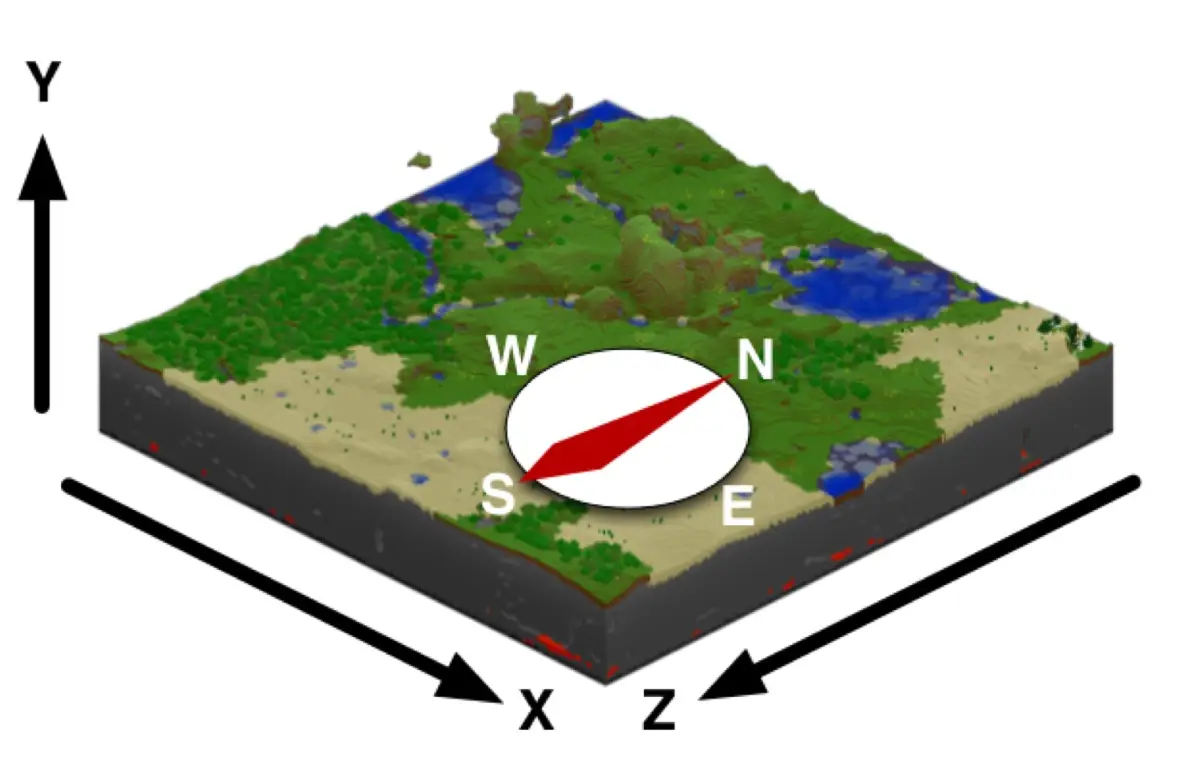
The most important one for everyday navigation is Y. It tells you how deep you are when mining (diamond ore generates most often between Y = -64 and Y = 16) and how high you are when building. X and Z are what you'll jot down when you want to remember a location.
Do Coordinates Disable Achievements?
This is the question everyone asks, and the answer depends on how you enable them.
Using the world settings toggle: no. Turning on Show Coordinates through the settings menu does not count as enabling cheats. Your achievements stay intact. This is the recommended method if you care about achievements.
Using the /gamerule command: it depends. If cheats are already on in your world, the command works fine but achievements are already disabled anyway. If cheats are off, you'll need to turn them on first, and that's what disables achievements. There's no way around this on Bedrock.
So if achievements matter to you, always use the settings toggle instead of the command.
How to See Coordinates on a Realm or Multiplayer Server
On a Realm you own, you can enable coordinates the same way as a regular world: pause the game, go to Settings, and flip the toggle. Every player on the Realm will see coordinates once you do this.
On a server you don't own, it's up to the server operator. If they haven't enabled coordinates, you won't be able to turn them on yourself (unless you have operator permissions to run the /gamerule command). Some servers keep coordinates off intentionally for gameplay reasons, so check with the server admin if you're not sure.
Coordinates in Minecraft Bedrock Not Showing Up? Try This
If you've turned on coordinates but they're not appearing on screen, here's what to check:
Make sure you toggled the right world. If you have multiple worlds, the setting is per-world. Turning it on in one world doesn't carry over to others.
Check your HUD settings. On some platforms, particularly mobile, the HUD can be minimized or hidden. Make sure your interface is set to show game info.
Restart the world. Occasionally the toggle doesn't take effect until you leave the world and rejoin. Save and quit, then load back in.
Look in the right spot. Coordinates appear in the top-left corner of the screen as small white text. They're easy to miss if you're not looking for them, especially on a bright snowy biome.
Showing coordinates in Minecraft Bedrock takes about five seconds through the world settings menu, and it won't affect your achievements. If you're on a server, the /gamerule command does the same job as long as cheats are enabled. Either way, there's really no reason to play without them unless you enjoy getting hopelessly lost (which, honestly, is also a valid Minecraft experience).