
Vibrant Visuals Lag Fix: Best Settings for Low-End and Mobile Devices
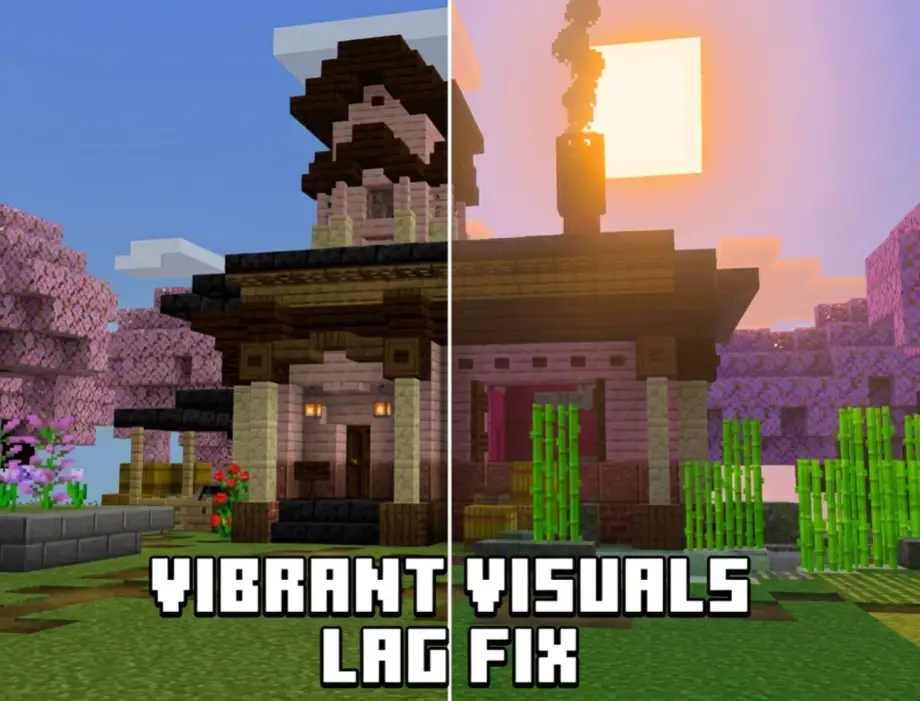
Your Minecraft was running fine. Then you updated, loaded a world, and suddenly you're at 25 FPS with stuttering every time you turn the camera. You didn't change any settings. So what happened?
Vibrant Visuals happened. And on supported devices, Mojang now turns it on by default.
This guide covers why your game got slower, which settings actually cost you frames, and exactly what to change on a phone or a low-end PC to get playable performance back without making the game look terrible.
First: You Probably Didn't Do Anything Wrong
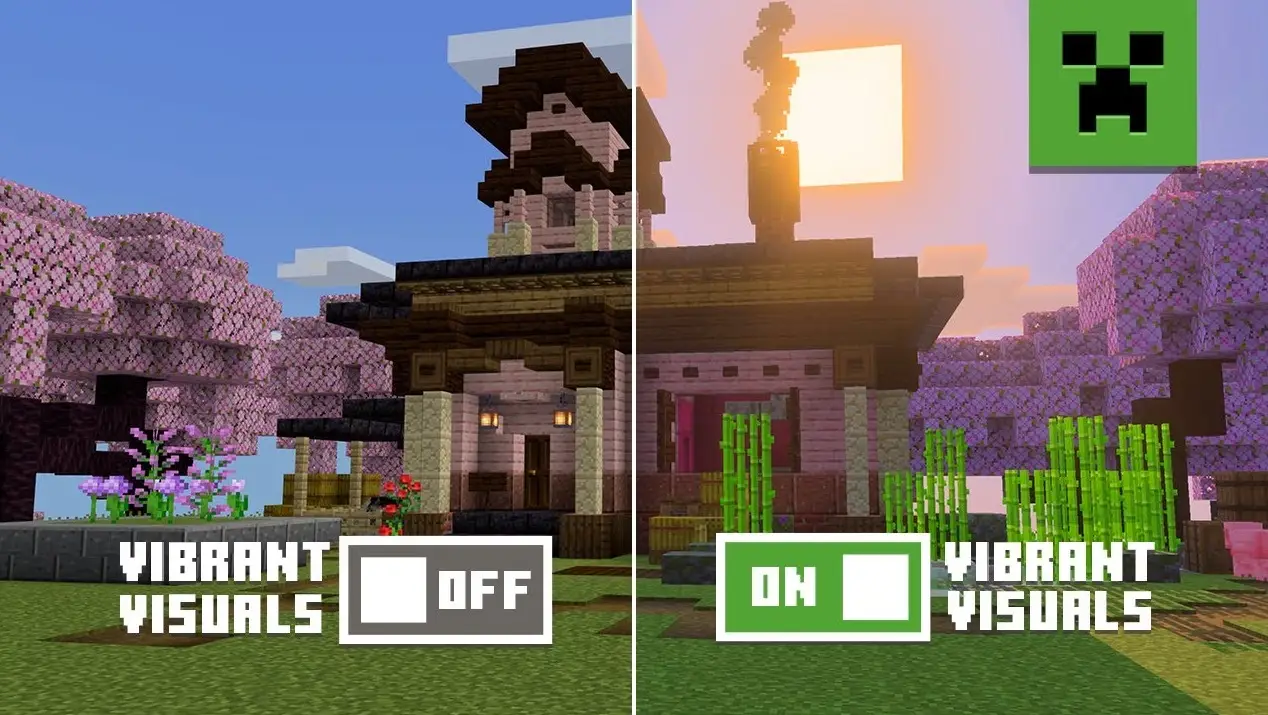
Vibrant Visuals is Mojang's official built-in shader system. It adds directional lighting, real shadows from torches, volumetric fog, water reflections, and bloom. It's a full physically based rendering pipeline running on top of the game you already had.
When it first launched it was opt-in through experiments. Since Bedrock 1.21.90.20, it's enabled by default on devices Mojang considers supported. That's the part catching people out. A phone that technically meets the minimum spec gets Vibrant Visuals switched on automatically, even if that phone can only run it at 30 FPS with stutters.
So if your game suddenly feels heavy after an update and you never touched the video settings, this is almost certainly why.
Check Whether Your Device Is Actually Supported
Mojang's supported hardware list:
- Android: Adreno 640, Mali-G68, Mali-G77, or Xclipse 530 or higher
- iOS: A12 chip or M1 or higher
- PC: Running the game on DirectX 12
Important nuance: "supported" means it will run, not that it will run well. A device sitting right at the minimum will technically render Vibrant Visuals while delivering a frame rate you won't enjoy. Meeting the spec is not the same as having headroom.
If your device is below these specs, Vibrant Visuals won't turn on by itself, and you shouldn't force it.
The Fastest Fix: Turn It Off Completely
If you just want your frames back and don't care about the lighting, this takes ten seconds:
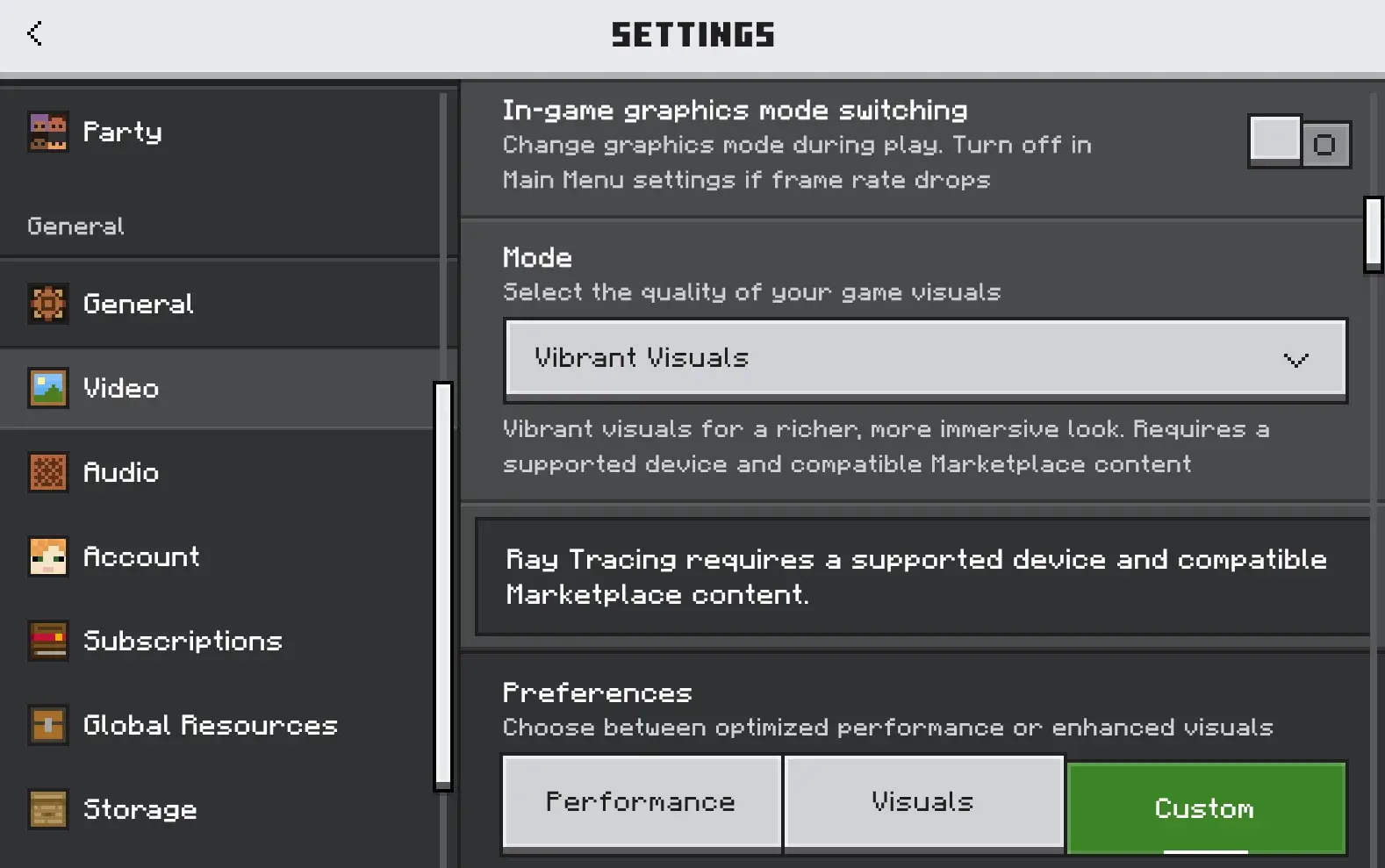
- Open Settings → Video
- Find the Graphics Mode dropdown
- Uncheck Vibrant Visuals
You're back to the classic Minecraft renderer at your old frame rate. No experiments to disable, no world to recreate. It's a local rendering toggle, so it changes nothing about your world or your saves.
If you'd rather keep the look and just make it playable, keep reading.
The Two Settings That Matter Most
Before touching anything else, change these two. Together they'll recover more performance than every other setting combined.
1. Resolution (Biggest Single Win)
This is the render resolution scale, and it's the most powerful performance lever in the entire menu. Dropping it means the game renders fewer pixels and then upscales the result.
The setting goes down to roughly 33% of native. On a phone, going from native to around 50-70% is often the difference between stuttering and smooth, and on a small screen the visual loss is far less noticeable than you'd expect.
Start at 70%. If it's still choppy, step down to 50%. Only go lower than that if you're desperate.
2. Upscaling Mode (Pick Bilinear on Weak Devices)
You have two options here, and the wrong one will cost you frames:
TAAU (Temporal Anti-Aliasing Upsample) combines temporal anti-aliasing with spatial upscaling. It produces a noticeably sharper image, but it costs more computing power.
Bilinear simply interpolates pixels. Lower image quality, but dramatically cheaper to run.
On a phone or a weak PC, choose Bilinear. You're already lowering resolution, and pairing a reduced resolution with the more expensive upscaler defeats the purpose. On a strong PC, TAAU is the better-looking choice.
Every Setting, Ranked by Performance Cost
Here's what each Vibrant Visuals setting does and how much it costs you.
Point Light Shadow Quality — Very Expensive
Point lights are the new directional, volumetric light sources on torches and lanterns. This setting controls whether those lights cast shadows from blocks and entities in front of them.
That's a huge amount of extra shadow computation, especially in caves and lit-up bases where you have dozens of torches. This setting can be turned off entirely, and on any low-end device it should be. Turning it off keeps the pretty point lighting but removes the expensive shadow casting.
Low-end recommendation: OFF.
Shadow Quality — Expensive
Controls sharpness and detail of shadows cast by the sun and moon, including your own shadow, block shadows, and mob shadows.
Sun shadows are a big part of what makes Vibrant Visuals look good, so dropping this to the lowest setting rather than off keeps the effect while cutting cost significantly.
Low-end recommendation: Lowest available.
Volumetric Fog Quality — Expensive
Fog with actual volume and light scattering. Most visible underwater and in the Nether. Options run from off through low, medium, high, and ultra.
This looks fantastic and costs a lot, particularly in the Nether where fog fills the entire view. On weak hardware, turn it off. On mid-range, low is a reasonable compromise.
Low-end recommendation: OFF or Low.
Reflections — Moderate to Expensive
Water and block reflections. Mojang implemented these while keeping water's pixelated texture, which is why they look distinctly Minecraft rather than generic-shader.
Cost scales heavily with how much water is on screen. If you play near oceans or build underwater, this is expensive. Inland and underground, it's cheaper.
Low-end recommendation: Lowest setting.
Point Light Quality — Moderate
The quality of the volumetric lighting effect from torches and lanterns, separate from their shadow casting.
This is where a lot of the Vibrant Visuals "wow" comes from, and it's cheaper than its shadow counterpart. Lower it before turning it off.
Low-end recommendation: Low, not off.
Bloom — Cheap
A percentage slider from 0 to 100 controlling the glow around light sources, the sun, and the moon.
Bloom is a cheap post-processing effect. Turning it down won't meaningfully help your frame rate, so set it purely to taste. Many players prefer it lower anyway because high bloom can wash out the image.
Low-end recommendation: leave it. Tune for looks, not FPS.
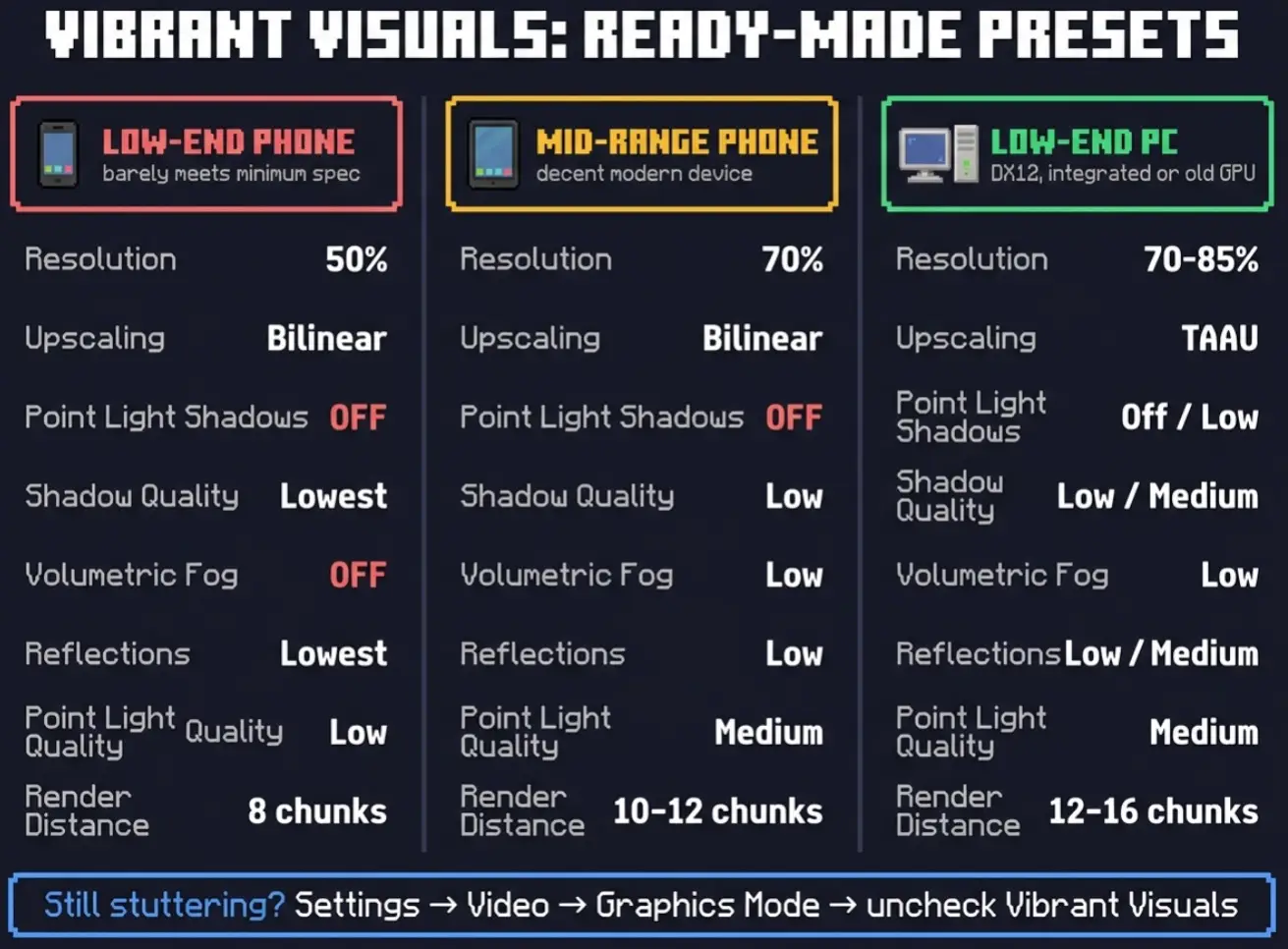
Recommended Presets
Low-End Phone (barely meets minimum spec)
- Resolution: 50%
- Upscaling: Bilinear
- Point Light Shadow Quality: Off
- Shadow Quality: Lowest
- Volumetric Fog: Off
- Reflections: Lowest
- Point Light Quality: Low
- Bloom: to taste
- Render distance: 8 chunks
Honest assessment: if this still stutters, your device isn't ready for Vibrant Visuals. Turn it off and enjoy a smooth game. There's no shame in it.
Mid-Range Phone or Tablet
- Resolution: 70%
- Upscaling: Bilinear
- Point Light Shadow Quality: Off
- Shadow Quality: Low
- Volumetric Fog: Low
- Reflections: Low
- Point Light Quality: Medium
- Bloom: to taste
- Render distance: 10-12 chunks
Low-End PC (DX12 capable, integrated or old GPU)
- Resolution: 70-85%
- Upscaling: TAAU if it holds up, otherwise Bilinear
- Point Light Shadow Quality: Off or Low
- Shadow Quality: Low or Medium
- Volumetric Fog: Low
- Reflections: Low or Medium
- Point Light Quality: Medium
- Bloom: to taste
- Render distance: 12-16 chunks
Non-Vibrant-Visuals Settings That Still Help
Some of your lag isn't Vibrant Visuals at all. Two settings outside that menu are worth checking.
Render distance. The single heaviest non-shader setting. Every extra chunk is more geometry to draw, and with Vibrant Visuals every one of those chunks also gets lit, shadowed, and fogged. The cost multiplies. On mobile, 8-12 chunks is realistic.
Simulation distance. This is separate from render distance and controls how far the game actually simulates. Lowering it helps CPU-side performance more than most players realize, and unlike render distance you keep the same view. See our simulation distance guide for how it works and what it breaks if you set it too low.
Close background apps. Obvious, but on phones especially, Minecraft with Vibrant Visuals wants every bit of memory and thermal headroom available. Background apps and a hot device both throttle your frame rate hard.
Should You Use Vibrant Visuals At All?
Straight answer: it depends on what you play for.
Turn it on if you build, take screenshots, explore for the scenery, or play casually on a device with real headroom. The lighting genuinely transforms how the game feels.
Leave it off if you do PvP, redstone, big farms, or anything where frame rate and responsiveness matter more than atmosphere. Also leave it off if your device only barely meets the minimum spec.
You can toggle it per session, so there's nothing stopping you from running it off for a technical build session and on when you want to wander around and enjoy the view.
Quick Checklist
- Game suddenly laggy after an update? Vibrant Visuals is probably on by default.
- Just want it fixed? Settings → Video → Graphics Mode → uncheck Vibrant Visuals.
- Want to keep it? Lower Resolution first and switch upscaling to Bilinear.
- Still slow? Turn Point Light Shadow Quality off. It's the most expensive setting available.
- Then drop Volumetric Fog and Shadow Quality.
- Don't bother lowering Bloom for performance. It won't help.
- Finally, lower render distance and simulation distance.