
How to Turn On Ray Tracing in Minecraft Bedrock
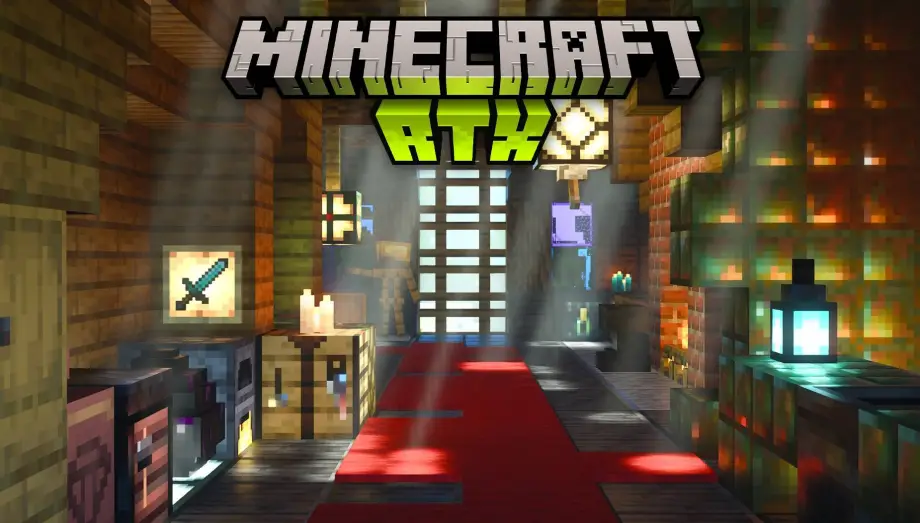
If you've ever seen those jaw-dropping Minecraft screenshots with realistic sunlight streaming through windows, water that actually reflects the sky, and shadows that look like they belong in a different game entirely, that's ray tracing. And yes, you can do that in Minecraft Bedrock Edition on PC.
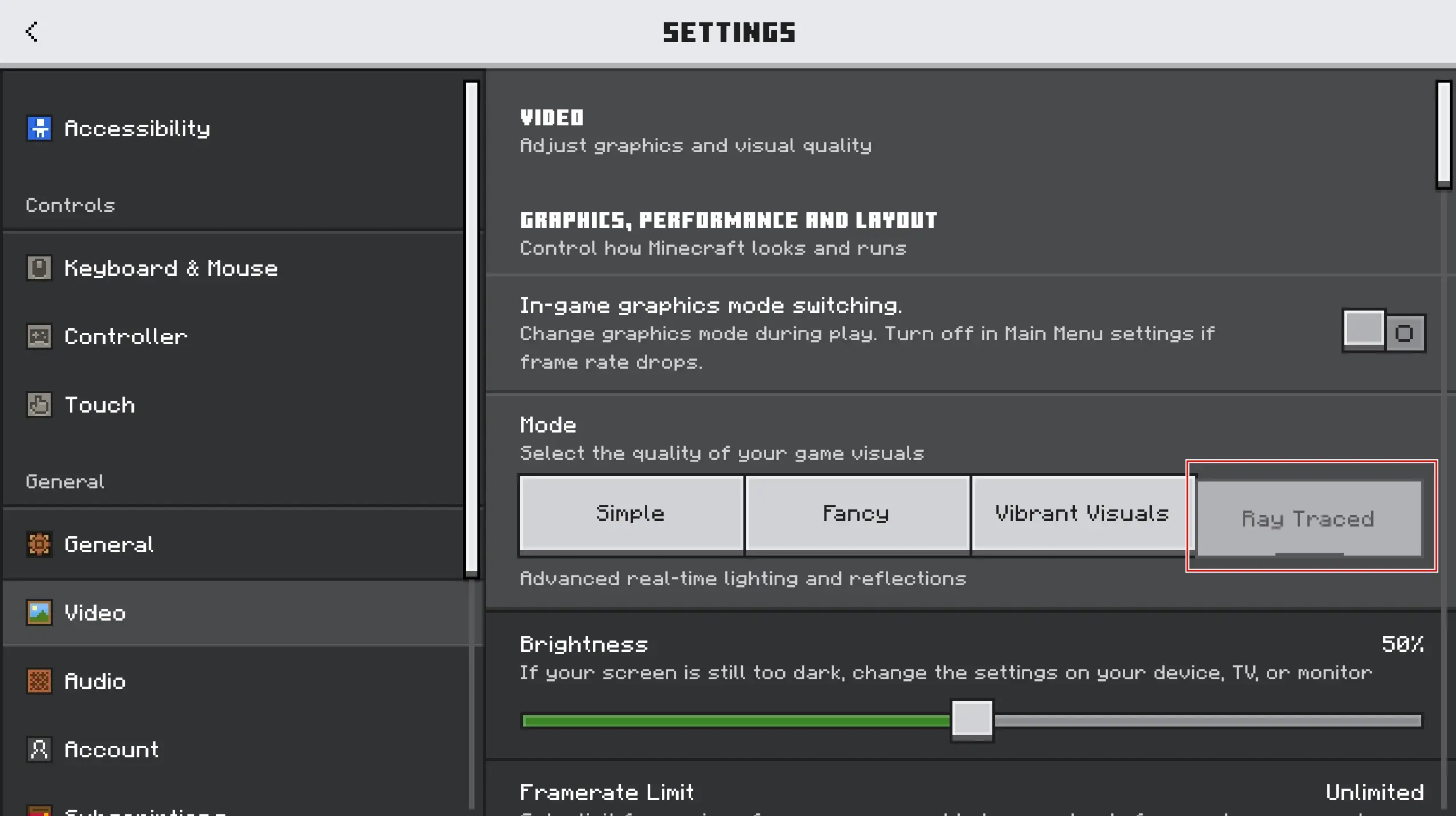
But here's the thing that trips everybody up: if you open Settings → Video right now and look for the ray tracing option, it's probably greyed out. Or missing entirely. You might even have an RTX graphics card and still see it locked. This is completely normal, and it doesn't mean your hardware is broken. It means Minecraft hasn't been given the data it needs to ray-trace your world yet.
Ray tracing in Bedrock isn't just a toggle you flip. It requires specific hardware, a resource pack with special texture data, and a few steps done in the right order. Skip any one of those and the option stays grey. This guide walks you through all of it, including the newer Vibrant Visuals option that works on more modest hardware.
What You Need (Hardware Requirements)
Ray tracing is GPU-intensive. Before you do anything else, check that your hardware can handle it.
Minimum for ray tracing (RTX mode):
- NVIDIA GeForce RTX 2060 or higher (any RTX card from the 20, 30, 40, or 50 series)
- Some AMD GPUs with RDNA 2 architecture (RX 6700 XT and above) also work via driver support
- Windows 10 or 11 with DirectX Raytracing (DXR) support
- Latest GPU drivers installed
Recommended for smooth gameplay:
- RTX 3070 or better for 60 FPS at 1080p
- RTX 4070 or better for higher resolutions
- At least 16 GB of RAM
If you have a GTX card (like a GTX 1060 or 1080), ray tracing won't work for you. But keep reading, because Vibrant Visuals at the end of this guide is an alternative that runs on much more modest hardware.
One more thing: ray tracing is a Bedrock Edition on Windows feature. It doesn't work on Java Edition, and it doesn't work on mobile or Nintendo Switch. Xbox Series X does support it natively with no setup needed.
Why You Need a Resource Pack (This Is the Part Everyone Misses)
Here's the biggest misconception about Minecraft ray tracing: people expect a single "Enable Ray Tracing" button that just works. That's not how Bedrock handles it.
Ray tracing in Bedrock requires a resource pack with physically-based materials. Regular vanilla textures don't contain the data that the ray tracing engine needs. Things like how rough a surface is, whether it's metallic, how it emits light. Without this data, the game has nothing to ray-trace, so the toggle stays greyed out.
Think of it this way: the resource pack is the actual switch. The hardware and settings are just prerequisites.
Step-by-Step: Enabling Ray Tracing
Here's the full process, start to finish.
Step 1: Install an RTX Resource Pack
The most popular free option is Vanilla RTX, which adds physically-based materials to every block while keeping the default Minecraft look. You can download it from our site.
If you download a .mcpack file, double-click it and Minecraft will import it automatically. Wait for the import to complete before moving on.
Step 2: Activate the Resource Pack
- Open Minecraft Bedrock Edition
- Go to Settings → Global Resources
- Find the pack under My Packs
- Click it and hit Activate
Step 3: Enable In-Game Graphics Mode Switching
- Still in Settings, go to Video
- Scroll to the bottom
- Toggle on Allow In-game Graphics Mode Switching
This setting is easy to miss and it's required. Without it, you won't see the ray tracing option inside a world.
Step 4: Load a World and Switch to Ray Traced
- Go back to the main menu and load a world (or create a new one)
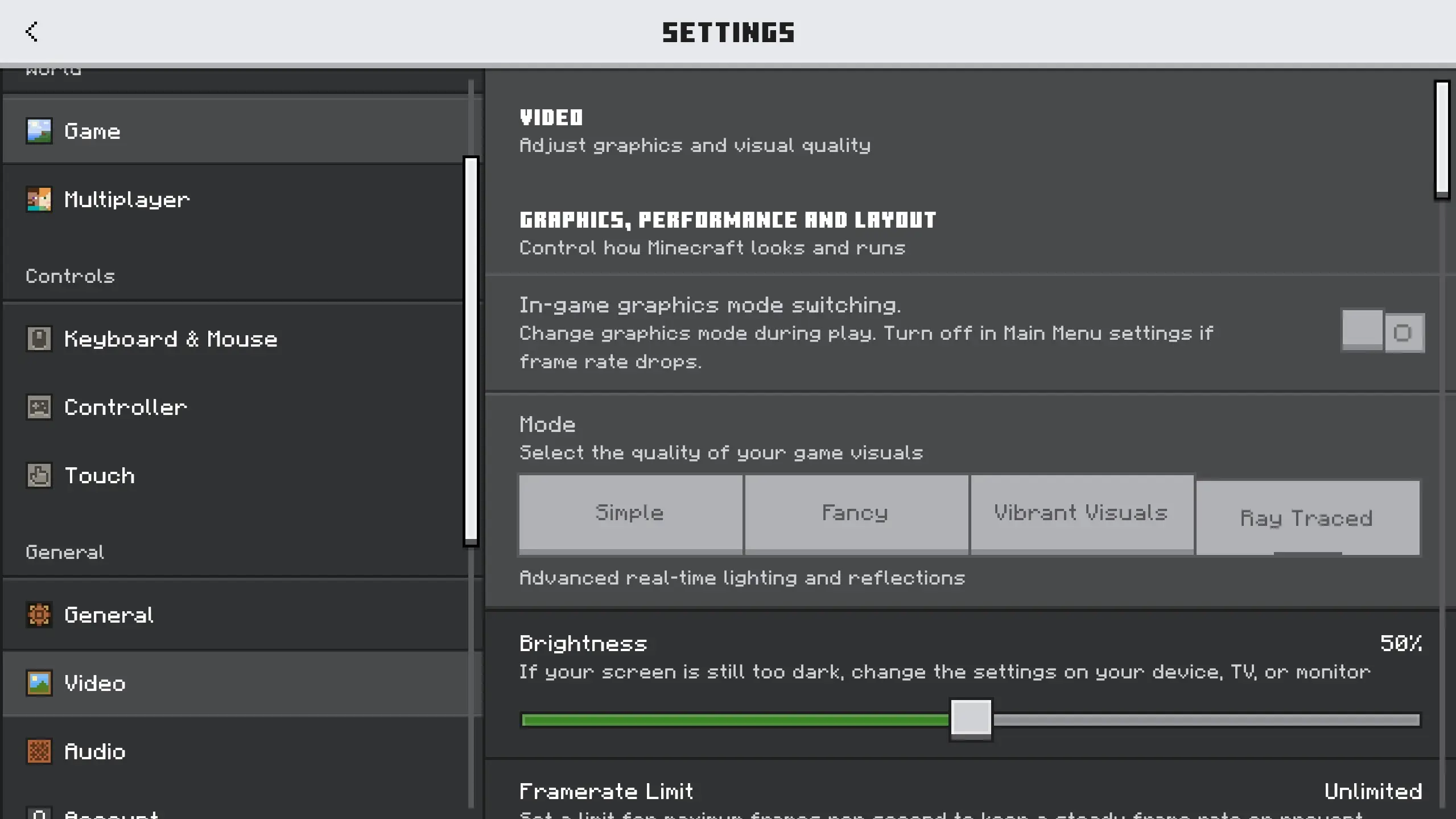
- Once inside, open Settings > Video
- Change Graphics Mode to Ray Traced
The world should now render with full ray tracing: realistic shadows, reflections, light bouncing between surfaces, the works.
If Textures Look Wrong After Enabling
There's a known bug where textures can appear glossy or broken after first enabling ray tracing. If this happens:
- Go back to the main menu
- Deactivate the RTX resource pack in Global Resources
- Reactivate it
- Load the world again
You might need to do this a couple of times. It's annoying, but it usually resolves itself. The Vanilla RTX App mentioned above automates this workaround if you want to skip the hassle.
The Easier Alternative: Vibrant Visuals
If ray tracing feels like too much trouble, or your hardware can't handle it, Minecraft recently introduced Vibrant Visuals. It's a built-in graphics mode that adds improved lighting, reflections, and shadows without requiring an RTX GPU or a resource pack.
Enabling it is much simpler:
- Open Settings → Video
- Toggle on Allow In-game Graphics Mode Switching
- Load a world
- Go to Settings → Video inside the world
- Change Graphics Mode to Vibrant Visuals
Vibrant Visuals doesn't look quite as dramatic as full ray tracing. The reflections aren't as precise and the lighting is less physically accurate. But it runs significantly better, keeps the vanilla feel of the game, and works on a much wider range of hardware. For most players, this is the better option in terms of performance-to-visuals ratio.
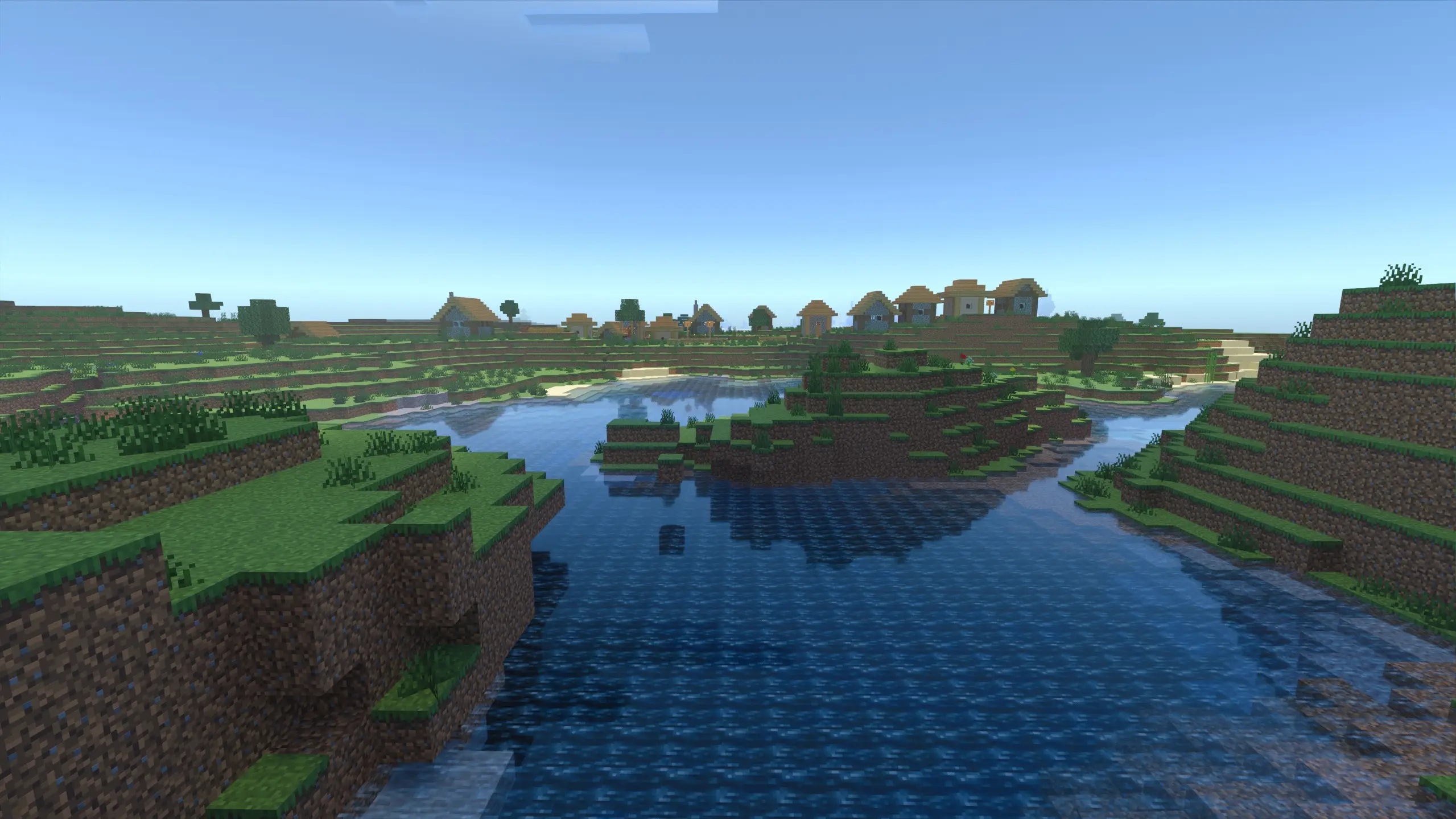
Ray Tracing vs Vibrant Visuals: Which Should You Pick?
Pick ray tracing if: you have an RTX GPU (or supported AMD card), you want the most realistic lighting possible, and you're okay with lower frame rates and the resource pack setup process.
Pick Vibrant Visuals if: you want better visuals without the headache, your hardware is mid-range, or you just want something that looks good and runs smooth out of the box.
You can also switch between them freely on a per-world basis, so there's no commitment. Try both and see what feels right for your setup.
Recommended Resource Packs for Ray Tracing
If you've got ray tracing working and want to push the visuals further, here are some packs worth trying:
Vanilla RTX Normals — the standard choice. Handcrafted 16x normal maps that stay faithful to vanilla Minecraft's look while adding depth and surface detail to every block. Free on CurseForge.
Vanilla RTX 192x — the high-detail version from the same creator. 192x normal maps with significantly more surface detail. Looks stunning but demands a beefier GPU (RTX 3070+ recommended).
RTX Marketplace Worlds — Mojang and NVIDIA collaborated on several free ray tracing showcase worlds available in the Marketplace. Search "RTX" to find them. They're great for seeing what's possible and are pre-configured to work out of the box.
Troubleshooting
"Ray Traced" option is greyed out. This almost always means either your GPU doesn't support DXR, your drivers are outdated, or you don't have an RTX resource pack activated. Check all three.
"Allow In-game Graphics Mode Switching" is missing. Make sure you're running the latest version of Minecraft Bedrock. This option was added in a relatively recent update and may not appear on older versions.
Terrible frame rate. Ray tracing is demanding. Try reducing render distance to 8-12 chunks, lowering the upscaling resolution, and making sure DLSS (or FSR for AMD) is enabled in your GPU control panel. Closing background apps also helps.
VSync causing low FPS. There's a known Minecraft bug where the in-game VSync setting tanks performance with ray tracing. Disable VSync inside Minecraft and enable it through your GPU control panel (NVIDIA Control Panel or AMD Software) instead. This often doubles your frame rate.
RTX 50-series: DLSS not working. The game ships with an older DLSS library that doesn't support the newest cards. The Vanilla RTX App includes an option to update the DLSS file automatically. Alternatively, you can manually replace the DLSS .dll in the game's directory.
Before you go
Ray tracing in Minecraft Bedrock looks incredible, but the setup is more involved than most people expect. The key thing to remember: you need a resource pack with physically-based textures, not just a graphics toggle. Install Vanilla RTX, enable in-game graphics switching, load a world, and switch to Ray Traced. If your hardware can handle it, the result is genuinely one of the most visually impressive things you can see in Minecraft.