

What Is a .mcaddon File and How to Install It
You downloaded an add-on and got a file ending in .mcaddon. Now what?
What a .mcaddon file actually is
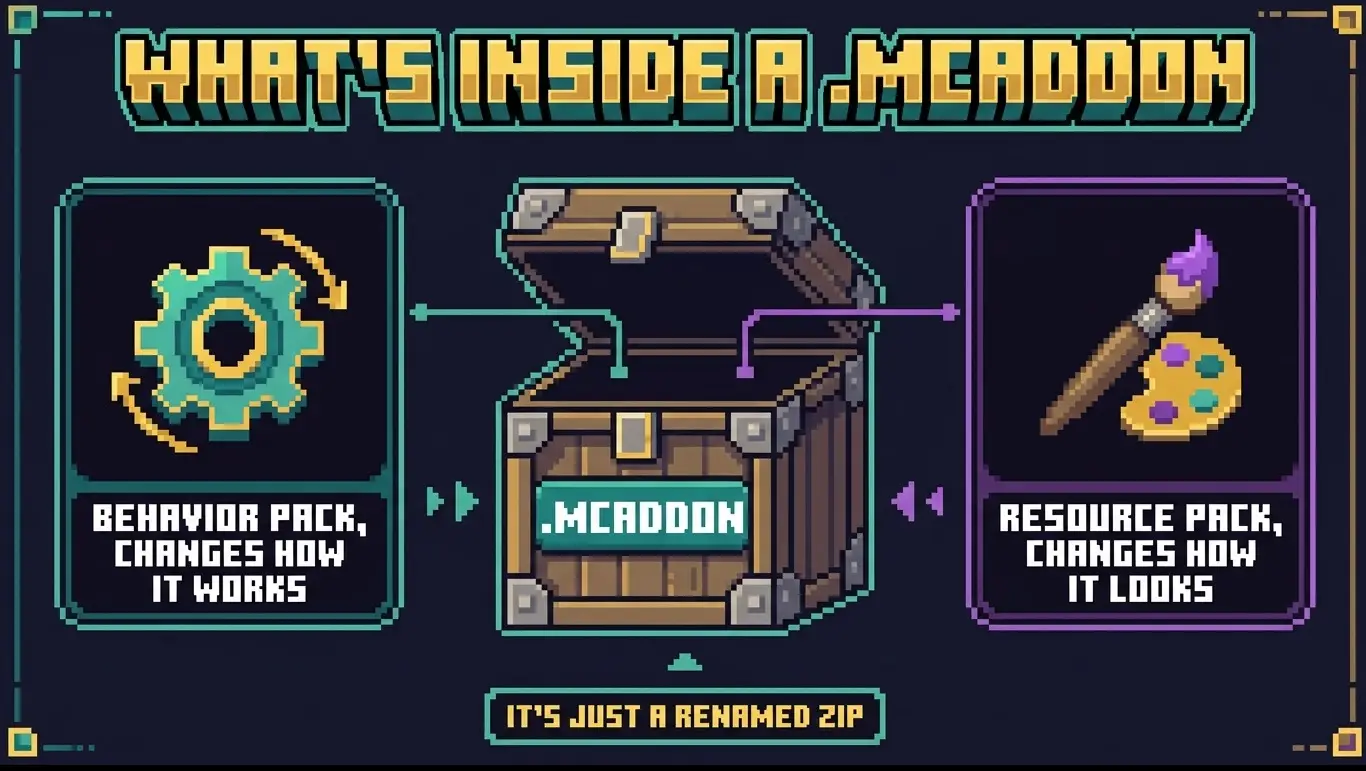
A .mcaddon is a bundle. Inside it sits everything an add-on needs: usually a behavior pack that changes how the game works, plus a resource pack that changes how it looks. Packaging them together means one file instead of two, and one tap instead of two imports.
Under the hood it's a renamed ZIP archive. That detail matters later, when your browser decides to be clever about it.
Installing on Android
- Download the file. Chrome usually drops it straight into Downloads.
- Open the download notification, or find the file in the Files app.
- Tap it. Android asks which app should handle it. Choose Minecraft.
- The game opens and shows an import progress bar. Wait for "Import successful".
If tapping does nothing, open the Files app, long-press the file, and use Open with → Minecraft. You don't need a third-party file manager for this, whatever old tutorials say.
Installing on iOS and iPadOS
- Download the file in Safari. It lands in Files → On My iPhone → Downloads.
- Tap the file once. iOS previews it as an archive, which looks wrong but is fine.
- Tap the Share icon, then pick Minecraft from the app row. If it isn't there, tap More and enable it.
- Minecraft launches and imports the pack.
Installing on Windows
Double-click the file. That's the whole procedure. Minecraft registers the .mcaddon extension when you install it from the Microsoft Store, so Windows knows where to send it.
If Windows asks what to open it with and Minecraft isn't listed, the game was probably installed for a different user account, or you're on the Java Edition, which doesn't use these files at all.
Xbox, PlayStation and Switch
You can't. Consoles don't let you import pack files from storage, and no workaround changes that. Your options are the in-game Marketplace, or joining a Realm where the packs are already applied. If you have a phone or PC signed into the same Microsoft account, import the add-on there, apply it to a world, upload that world to a Realm, and play it from the console.
Turning the add-on on
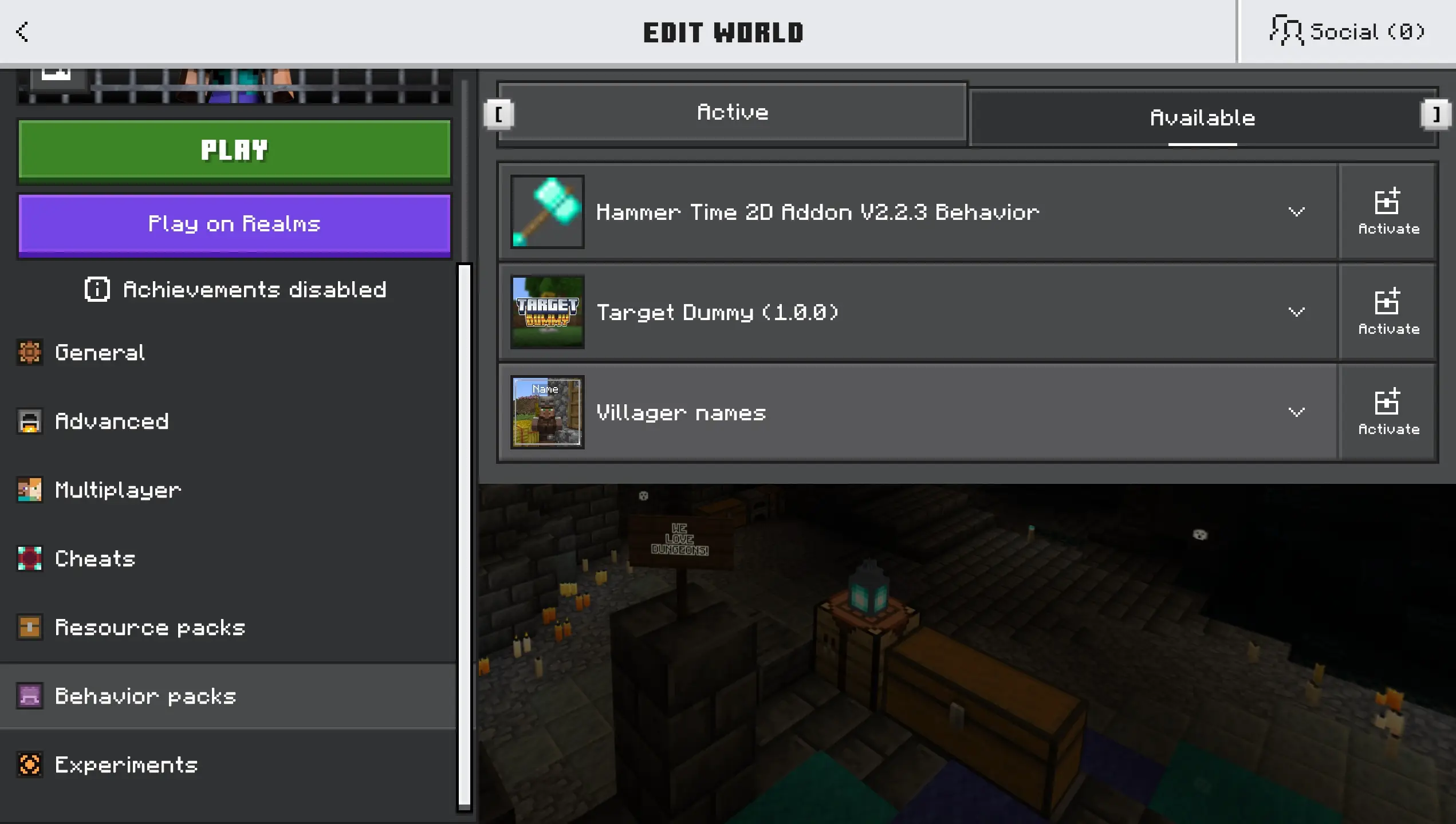
Importing is not activating. Minecraft puts the packs in your library and waits.
- Create a new world, or tap the pencil icon next to an existing one.
- Open Behavior Packs, find the add-on, tap Activate.
- Do the same under Resource Packs.
- Some add-ons need Experiments switched on. The add-on page will say so.
When it goes wrong
- The file downloaded as .zip. Some browsers rename it. Rename it back to .mcaddon and it will open normally.
- "Import failed". The download was cut short. Delete it and download again on a stable connection.
- Imported, but nothing changed in game. The packs are sitting in your library unactivated. See the section above.
- Mobs or blocks are invisible. The resource pack half didn't activate. Check both lists, not just Behavior Packs.
- It worked, then broke after a game update. Add-ons target specific versions. Check the supported versions listed on the add-on's page.
In short
Download, open with Minecraft, then activate both packs in your world settings. Nine times out of ten that's all there is to it. When it isn't, the culprit is usually a browser that renamed the file, or a pack you forgot to switch on.
