
What Is a .mcpack File and How to Open It
A .mcpack holds exactly one pack. That single fact explains most of the confusion around it.
One file, one pack
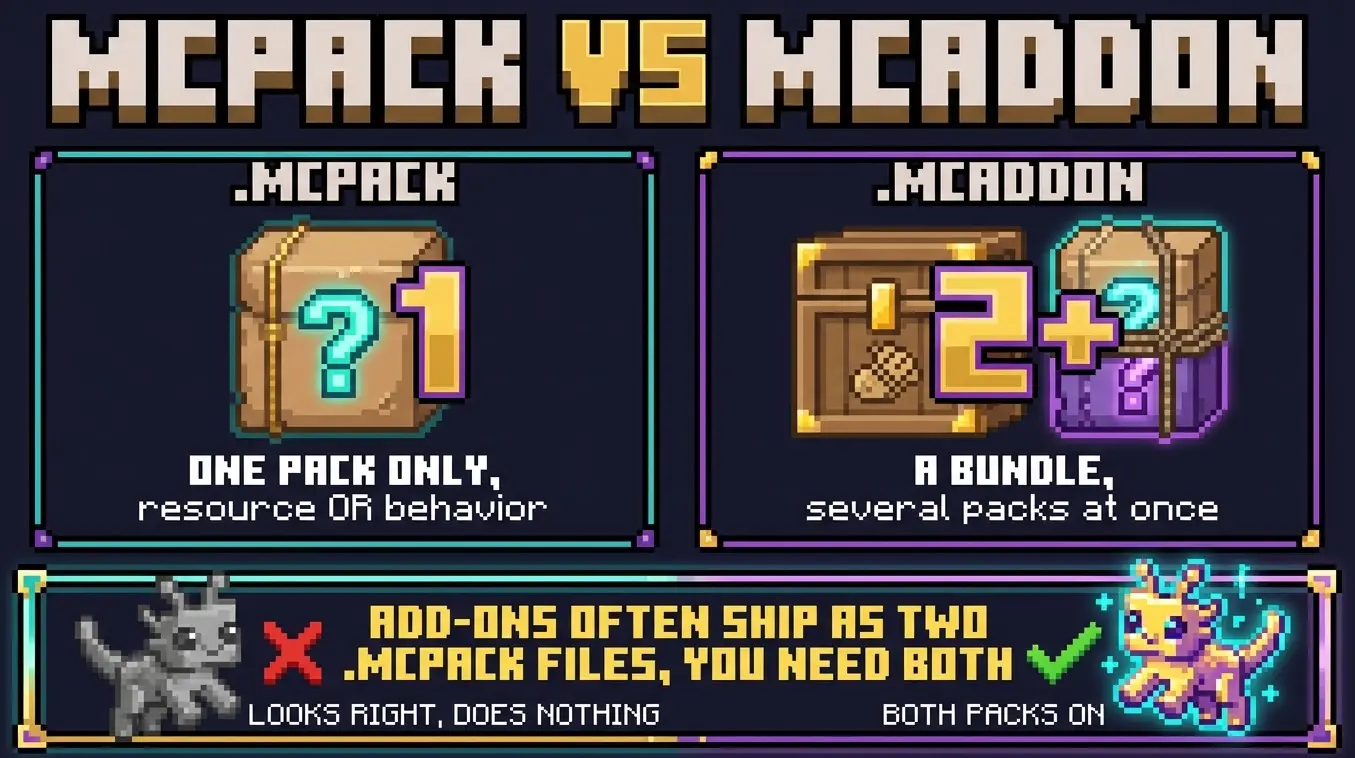
Where a .mcaddon bundles several packs together, a .mcpack carries one. Either a resource pack that changes textures, sounds and models, or a behavior pack that changes how mobs and items work.
This is why add-ons are so often distributed as two separate .mcpack files. Install one and the creature looks right but stands there doing nothing. Install the other and it behaves correctly but looks like a vanilla pig. You need both.
Texture packs and shaders are different. They're resource packs only, so a single .mcpack is the whole thing.
Opening it on Android
- Download the file. It goes to Downloads.
- Tap the download notification, or open the Files app and tap the file there.
- Pick Minecraft when Android asks which app to use.
- Repeat for the second .mcpack if the add-on shipped two.
Opening it on iOS and iPadOS
- In Safari, download the file. It goes to Files → Downloads.
- Tap it, then tap Share.
- Choose Minecraft. Use More to add it to the share sheet if it's missing.
Opening it on Windows
Double-click. Minecraft claims the .mcpack extension during installation, so the file opens in the game directly.
Turning a .zip into a .mcpack
Creators sometimes upload packs as plain ZIP archives, and browsers sometimes rename .mcpack downloads to .zip on their own. Either way the fix is the same: rename the extension.
On Windows you'll need file extensions visible first. In File Explorer, open View and tick File name extensions. Then rename pack.zip to pack.mcpack and open it.
On Android and iOS, the Files app lets you rename by long-pressing the file. One caveat: this only works if the archive contains a single pack folder with a manifest.json inside. If the ZIP holds two folders, you have a bundle, so rename it to .mcaddon instead.
Activating what you imported
The import puts the pack in your library. It doesn't apply it.
- Edit an existing world, or start a new one.
- Under Resource Packs, open My Packs and activate yours.
- Under Behavior Packs, do the same.
- Resource packs can also be applied globally, under Settings → Global Resources, which applies them to every world at once.
Common problems
- Nothing happens when you tap the file. Minecraft isn't registered as a handler. Long-press and use "Open with".
- "Unsupported file" or the import stalls. Incomplete download. Delete and try again.
- The pack shows a red exclamation mark. It was built for a different game version. The add-on's page lists the supported ones.
- Half the add-on works. Classic sign that only one of the two packs got installed.
- Everything imported twice. Opening the same file repeatedly creates duplicates. Delete the extras from your library.
One habit worth keeping
Keep the downloaded files until you've confirmed the pack works. If an import goes wrong, re-opening the original file is faster than hunting for the download link again.