

How to Open .mcworld and .mctemplate Files
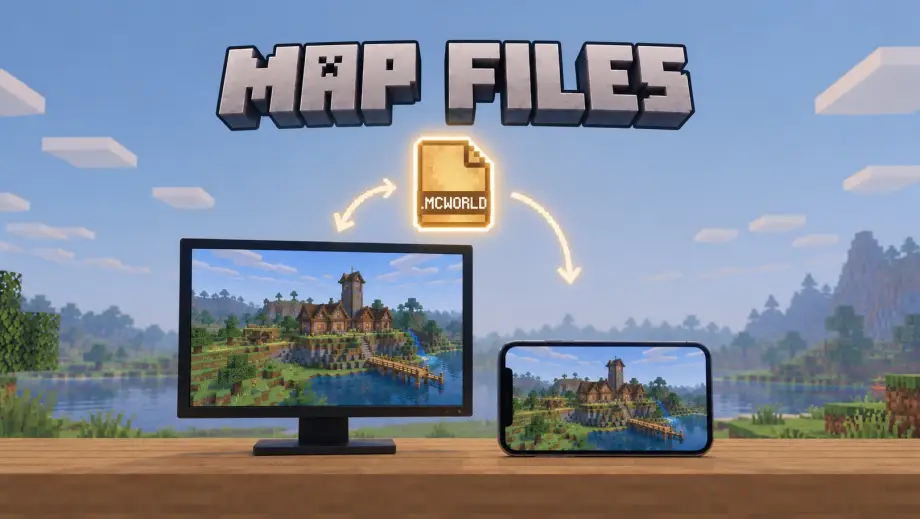
Maps arrive as .mcworld or .mctemplate files. They look similar and behave differently.
World or template?
A .mcworld is a finished world. Import it and you get that exact save: same buildings, same chests, same terrain, same time of day the creator left it at. Play it, change it, break it. It's yours.
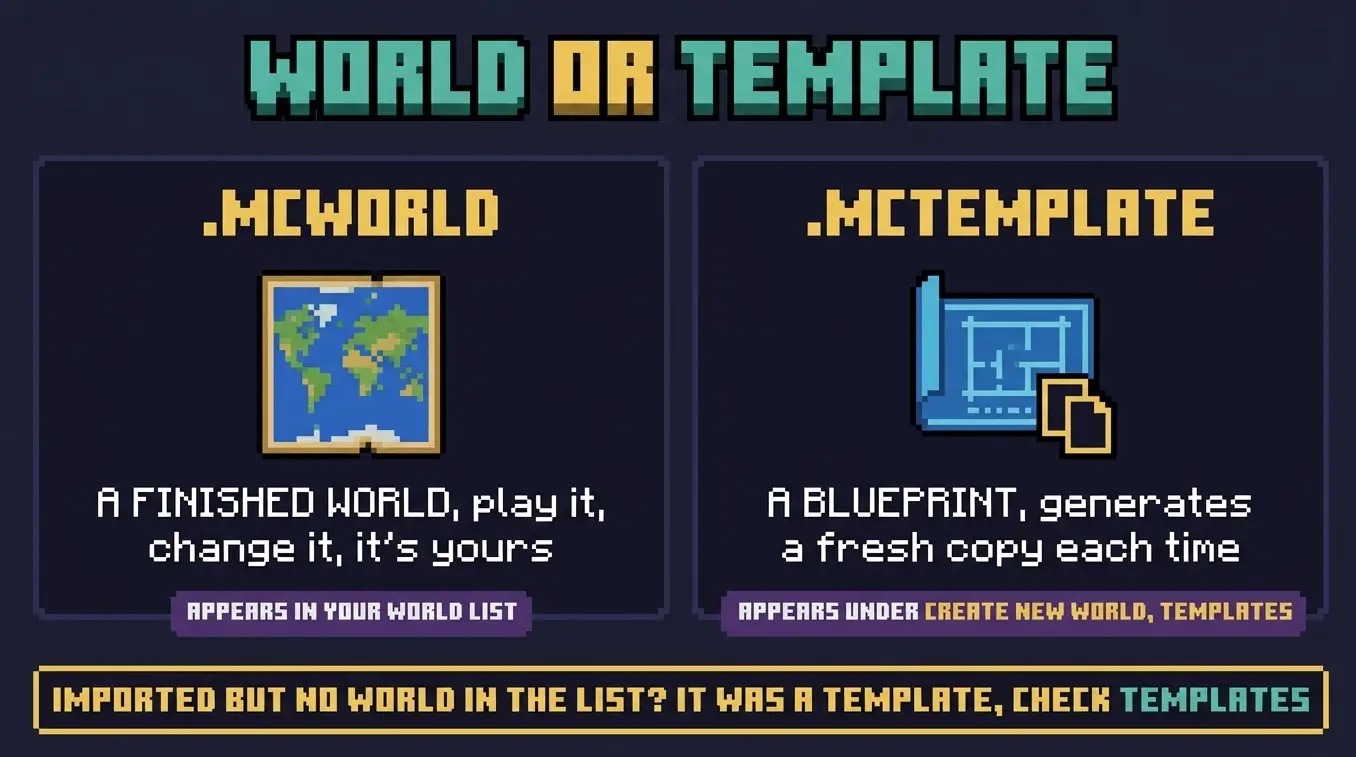
A .mctemplate is a blueprint. Importing it doesn't create a playable world. Instead it appears when you start a new world, under World Templates, and you generate a fresh copy from it. Useful for maps meant to be replayed, like minigames, parkour and challenge maps, because the original stays clean.
Importing on Android
- Download the file to Downloads.
- Tap the download notification, or find it in the Files app.
- Choose Minecraft.
- For a .mcworld the new world appears in your world list. For a .mctemplate, look under Create New World → Templates.
Importing on iOS and iPadOS
- Download in Safari. The file lands in Files → Downloads.
- Tap it, tap Share, choose Minecraft.
Importing on Windows
Double-click the file. Minecraft imports it and the world shows up in your list.
Maps that come as .zip or .rar
Plenty of older maps are distributed as archives. Two routes work.
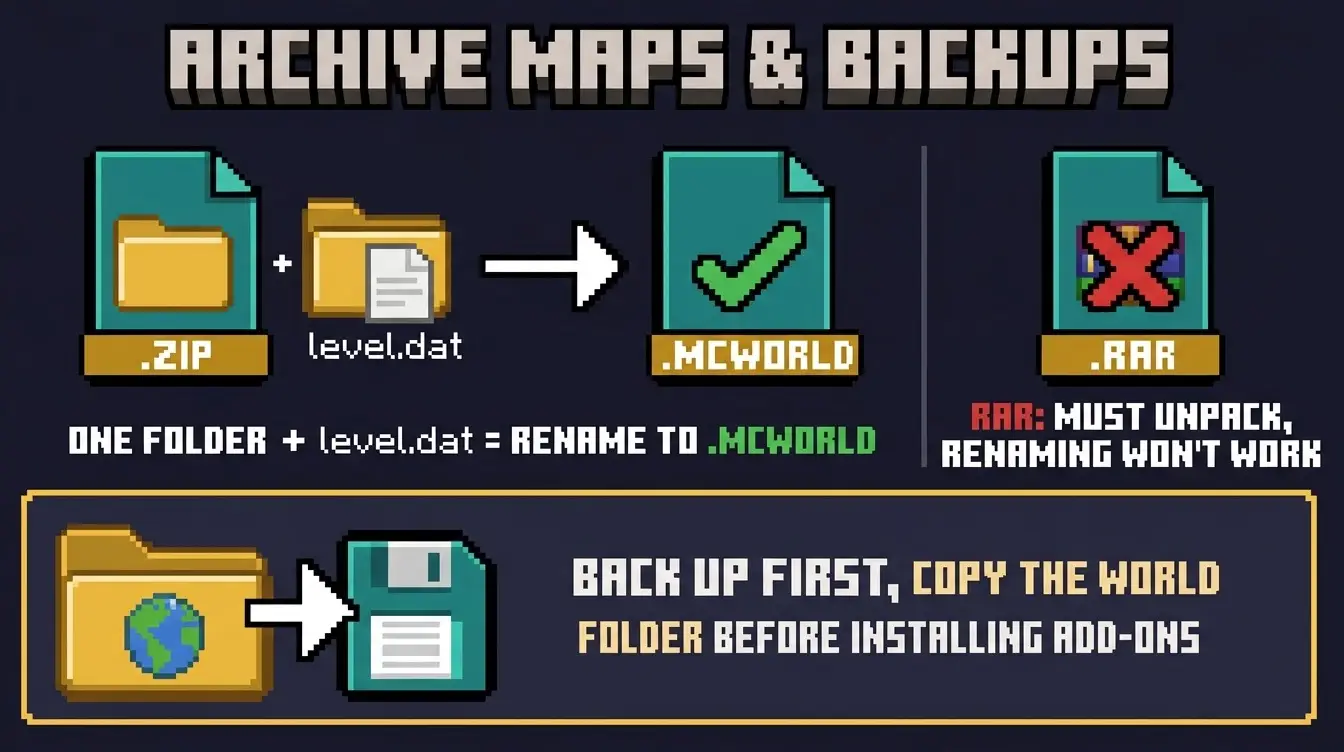
Rename it. If the archive contains one folder with a level.dat inside, rename the file from .zip to .mcworld and open it. This is the quick path and it usually works.
Unpack it manually. On Windows, extract the archive and move the world folder into:
%localappdata%\Packages\Microsoft.MinecraftUWP_8wekyb3d8bbwe\LocalState\games\com.mojang\minecraftWorlds
Paste that path into the File Explorer address bar. Each world lives in its own folder there. Minecraft must be closed while you do this, or it will overwrite your changes when it exits.
.rar archives need an unpacker. Minecraft can't read them, and renaming a .rar to .mcworld won't work, because the format inside is different.
Where your worlds actually live
Knowing the folder is useful beyond installing maps. It's also how you back a world up: copy the folder somewhere safe before you install an add-on that might break it, or before you let a redstone experiment run overnight.
When something doesn't work
- Imported, but the world isn't in the list. It was a template. Check Create New World → Templates.
- "Import failed". Truncated download, or a .rar pretending to be a .zip.
- The world opens but structures are missing. The map needs a resource or behavior pack the creator shipped separately.
- Everything is dark and empty. You're outside the built area. Many maps expect you to spawn at specific coordinates, and the map's page usually lists them.
- The world imported twice. Opening the file again makes a second copy. Delete the duplicate from your world list.
Back it up first
Back up a world before installing anything into it. Add-ons that change world generation or replace vanilla mobs can leave a save in a state you can't undo, and a copied folder costs nothing.
```
